Butter POS introduces the multiple Interface Billing Screen, a flexible billing system designed to match different restaurant workflows, menu sizes, and service styles. Since no two restaurants operate the same way, Butter POS provides multiple billing interfaces that allow businesses to choose the most efficient layout for their daily operations.
The multiple Interface Billing Screen includes four interfaces:
- Billing Screen with Categories
- Billing Screen without Categories
- Billing Screen with Numpad & Without Categories
- Billing Screen with Numpad & Categories
Each interface is designed to optimize speed, accuracy, and ease of use based on restaurant needs.
Interface 1: Billing Screen With Categories
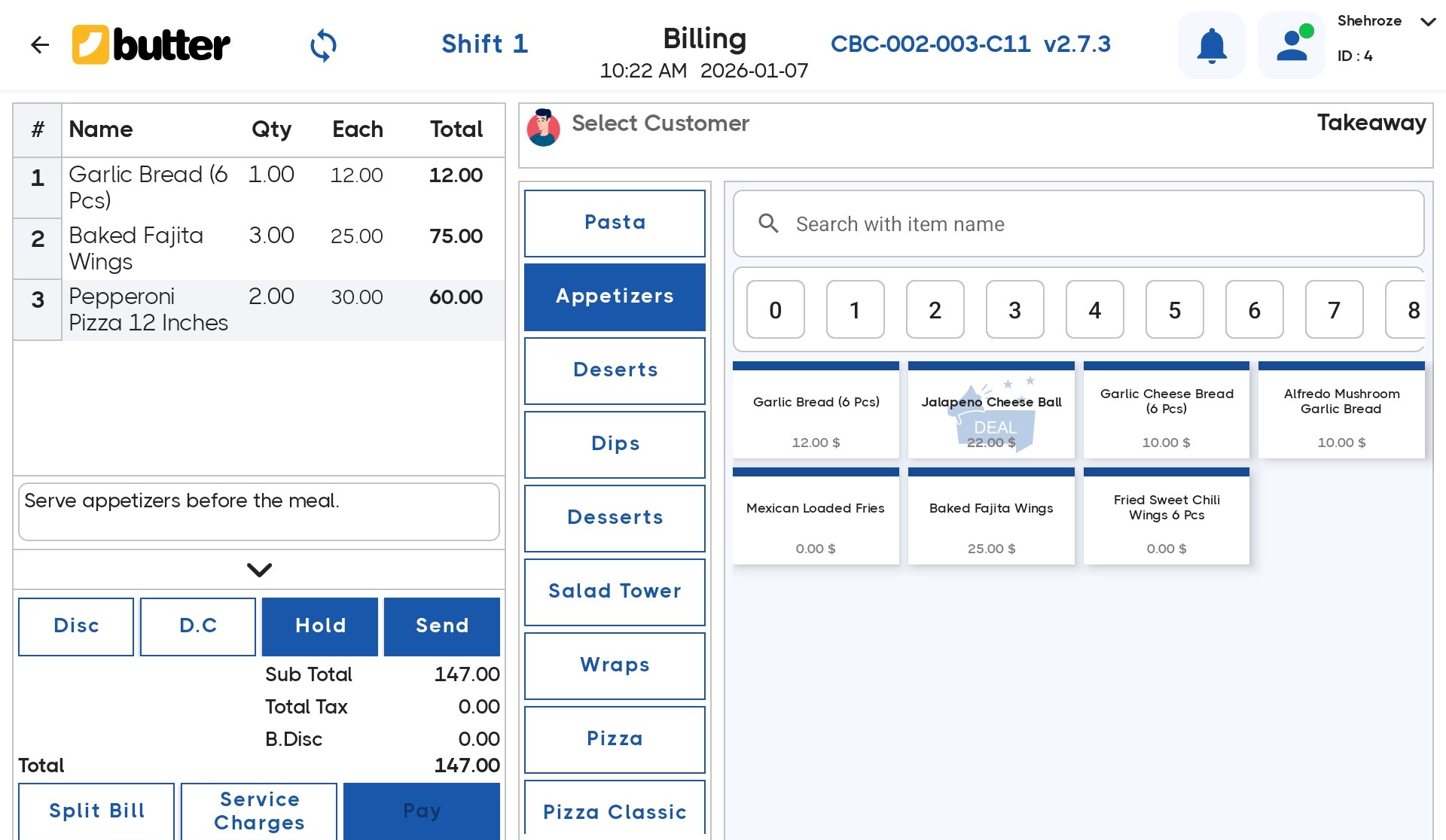
This billing screen is divided into three clearly defined sections that help cashiers process orders quickly and accurately:
- Left Side: Order cart showing selected items, quantity, price, and total
- Center: Category list such as pizza, pasta, appetizers, desserts
- Right Side: Items grid based on the selected category
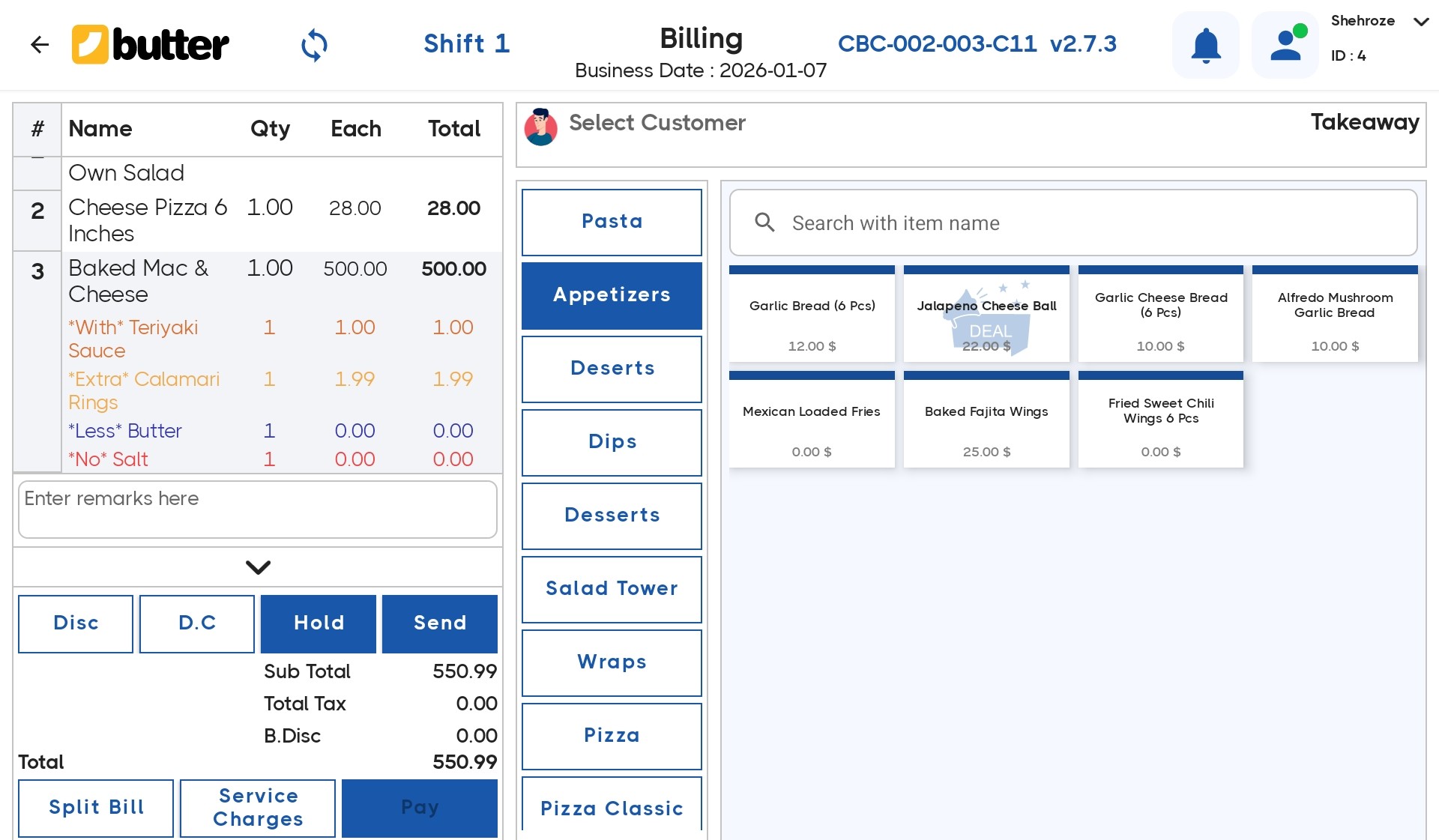
The workflow is logical and guided: Select category → select item → confirm bill.
How This Interface Works
- Staff selects a category from the center panel. All items under that category appear on the right side.
- Tapping an item instantly adds it to the cart on the left.
- Quantity, discounts, remarks, and service charges can be managed from the cart.
- The order can be held, sent to the kitchen, or paid.
Why Category-Based Billing Is Important
- Keeps large menus well organized
- Reduces item selection mistakes
- Makes training new staff easier
- Improves service speed during peak hours
Best Suited For
- Casual dine-in restaurants
- Cafés with medium to large menus
- Family dining restaurants
Interface 2: Billing Screen Without Categories
In this interface, categories are hidden and all items are displayed directly in a single grid.
- Left Side: Order cart
- Right Side: Complete items list
- Top: Search bar for quick item lookup
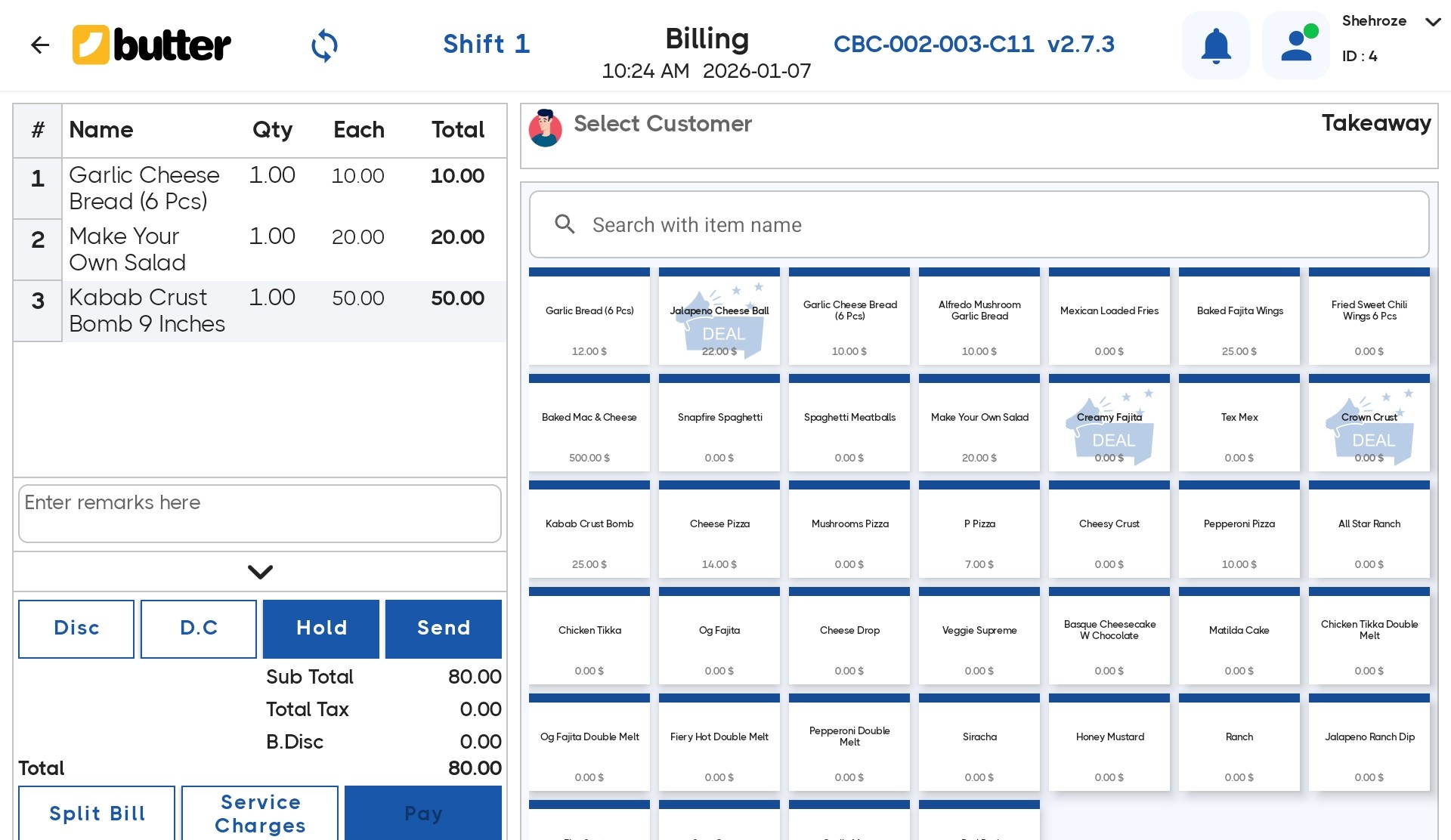
This layout is designed for speed-focused billing.
How This Interface Works
- Cashier directly taps items from the grid
- Items are instantly added to the cart
- Quantity, discounts, and payment options are managed from the cart
- No category selection is required
Why This Interface Is Effective
- Eliminates extra steps
- Ideal for repeat orders
- Extremely fast billing flow
- Minimal staff training required
Best Suited For
- Fast food outlets
- Takeaway and delivery kitchens
- Cafés with limited menus
Interface 3: Billing Screen With Numpad & Without Categories
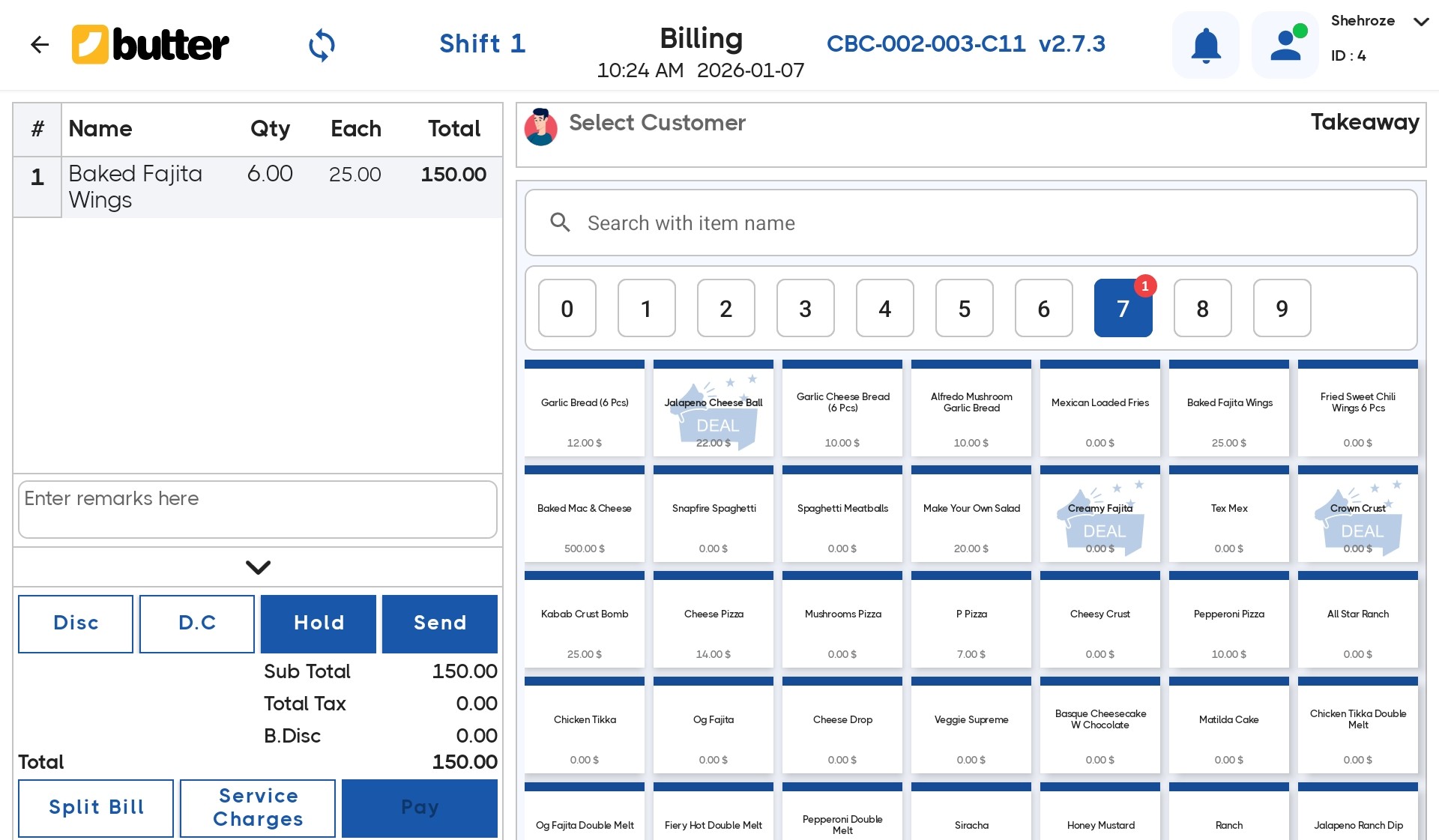
This billing interface does not include a category panel, but it provides a dedicated numpad for fast and accurate quantity control. It is designed for environments where order quantities are frequently entered manually and speed is critical.
- Left Side: Cart / Bill panel displaying selected items, quantities, and totals
- Top Right: Numpad for quantity entry
- Bottom Right: Items grid
How This Interface Works
- The cashier enters the required quantity using the numpad.
- The cashier then selects the item from the items grid.
- The item is added to the cart with the specified quantity.
Why Numpad Billing Is Useful
- Enables fast handling of bulk orders
- Makes manual quantity entry simple and precise
Real-Life Example
Customer says: "6 fries and 4 burgers."
Cashier workflow:
- Enters 6 on the numpad and taps Fries
- Enters 4 on the numpad and taps Burger
The order is completed quickly with minimal interaction.
Best Suited For
- Takeaway counters
- Food courts
- Juice bars
- Ice cream parlors
- Fast food businesses with quantity-based ordering
Interface 4: Billing Screen with Numpad & Categories
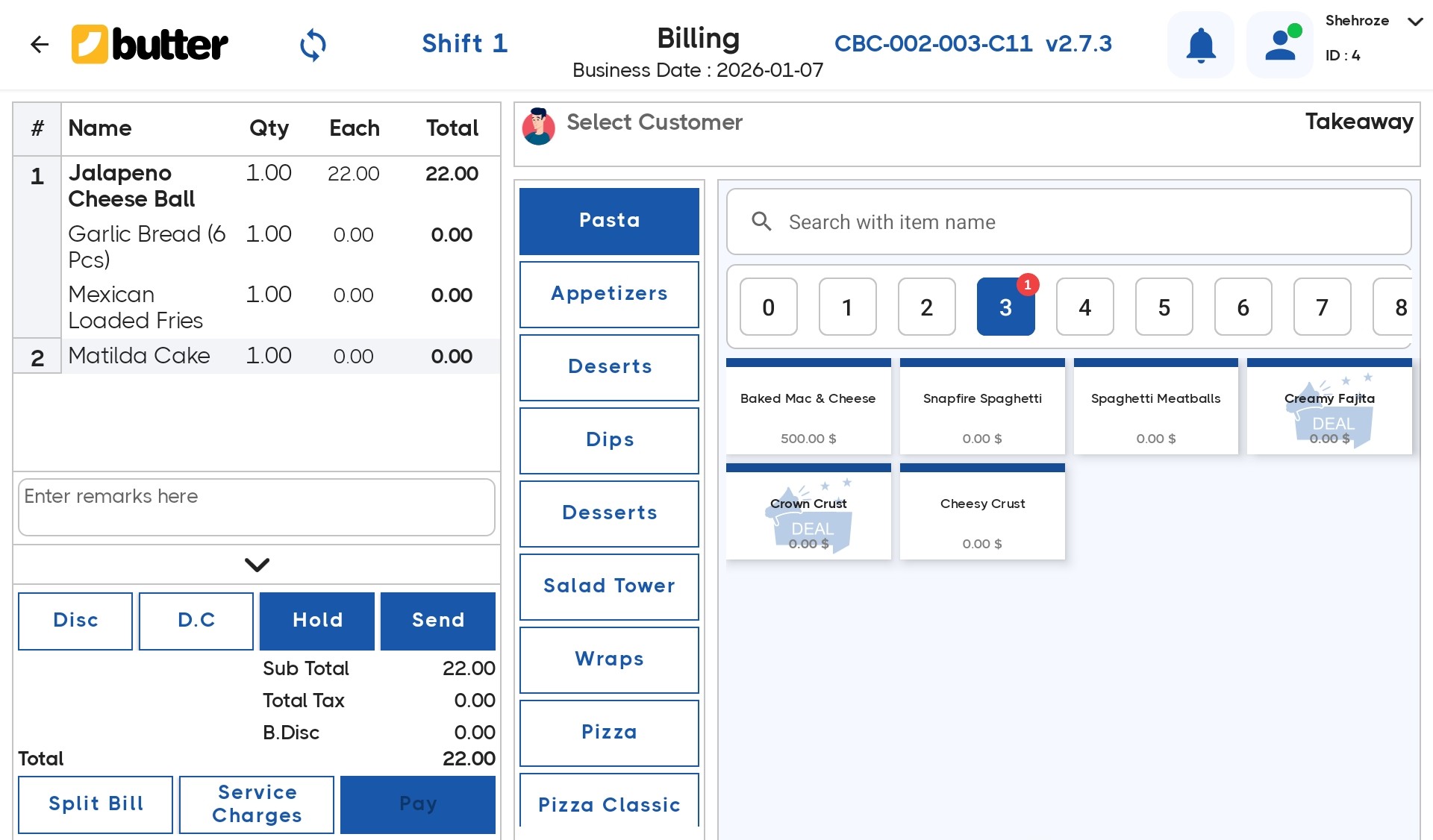
This is the most advanced and flexible billing interface offered by Butter POS. It combines category-based menu organization with numpad-driven quantity control, making it ideal for complex menus and high-volume operations.
- Left Side: Cart / Bill panel
- Center: Category list
- Right Top: Numpad
- Right Bottom: Items grid
How This Interface Works
- The cashier selects a category from the center panel.
- The desired quantity is entered using the numpad.
- The item is tapped from the items grid.
- The item is added to the cart with the correct quantity.
Why This Interface Is the Most Powerful
- Categories keep large menus structured and easy to navigate
- Numpad allows fast and accurate bulk quantity control
- Maintains both speed and billing accuracy during rush hours
Real-Life Example
Customer order: "2 Creamy Pasta, 1 Chicken Wrap, and 3 Cold Drinks."
Cashier workflow:
- Selects Pasta category → enters 2 → taps Creamy Pasta
- Selects Wraps category → enters 1 → taps Chicken Wrap
- Selects Drinks category → enters 3 → taps Cold Drink
The complete order is processed efficiently within seconds.
Best Suited For
- Pizza restaurants
- Multi-cuisine restaurants
- Cafés with extensive menus
- Family dining restaurants
- High-rush dine-in and takeaway businesses
Conclusion
The multiple interface billing screen makes Butter POS a highly adaptable solution for restaurants of all sizes and service models. By offering four distinct billing interfaces, Butter POS allows businesses to choose a layout that matches their menu structure, order volume, and operational speed.
Whether a restaurant prioritizes organized category navigation, ultra-fast order punching, or accurate bulk quantity handling, there is an interface designed to support it. This flexibility helps reduce billing errors, improve service speed, simplify staff training, and ensure smooth operations during both normal hours and peak rush periods.
Frequently Asked Questions (FAQs)
What is the Multi Interface Billing Screen in Butter POS?
In Butter POS, the Multi Interface Billing Screen lets you manage orders from different service types like dine in takeaway and delivery within a single billing workspace. It helps staff switch between order flows without leaving the billing screen.
Why should I use the Multi Interface Billing Screen?
It is designed to speed up billing during busy hours. Instead of navigating separate screens for each order type, you can handle everything from one interface, reducing clicks and minimizing billing mistakes.
Which order types are supported on the Multi Interface Billing Screen?
The screen supports all enabled order interfaces in your outlet such as dine in tables, takeaway orders and delivery orders. Each interface appears based on how your outlet is configured in Butter POS.
How do I switch between dine in and takeaway on the billing screen?
You can switch directly from the interface selector on the billing screen. Once selected, the billing flow automatically adjusts showing tables for dine in or direct item billing for takeaway.
Does switching interfaces affect the items already added to a bill?
No. Butter POS retains the items already added to the bill. Only the service context changes ensuring you do not lose order details while switching interfaces.
Can I manage multiple open bills from the same screen?
Yes. The Multi Interface Billing Screen allows you to view and switch between multiple active bills even if they belong to different order types.
How does the screen help during peak hours?
By consolidating order handling into one screen, staff can process bills faster, avoid navigating back and forth and keep queues moving smoothly during rush periods.
Is table management available within the Multi Interface Billing Screen?
Yes. For dining in orders table selection and table status are accessible directly from the billing interface making it easy to open, modify or settle table bills.
Can I apply discounts from the Multi Interface Billing Screen?
You can apply all supported discounts directly while billing regardless of the interface selected. The discount applies only to the active bill.
Are taxes calculated differently for different interfaces?
Butter POS automatically applies tax rules based on your outlet configuration. The Multi Interface Billing Screen ensures the correct tax logic is applied without manual adjustments.
Can staff with limited permissions access all interfaces?
Access depends on role permissions. Staff will only see and use the interfaces they are authorized for even within the Multi Interface Billing Screen.
Does the billing screen support quick item search?
Yes. You can search items using category shortcuts or tap frequently sold items without leaving the billing screen regardless of the interface selected.
How are delivery orders handled on this screen?
Delivery orders appear with their relevant details such as customer information and delivery mode while keeping the same billing flow as other order types.
Can I hold a bill and resume it later?
Yes. You can hold bills from any interface and resume them later from the same Multi Interface Billing Screen.
Does the screen support split bills?
If split billing is enabled for your outlet you can perform it directly from the billing screen without switching interfaces.
How does the Multi Interface Billing Screen reduce billing errors?
By keeping all order types in one consistent layout staff do not need to relearn different screens. This consistency reduces incorrect item selection and missed charges.
Can I print or share bills from this screen?
Yes. You can generate receipts or kitchen slips directly from the billing screen based on your outlet printer and sharing setup.
Is the Multi Interface Billing Screen available on all devices?
It is available on supported Butter POS devices including POS terminals and tablets provided your outlet is using a compatible billing setup.
Do I need special setup to enable the Multi Interface Billing Screen?
It works based on your existing order interfaces. Once multiple interfaces are enabled for your outlet the billing screen automatically supports them.
Who benefits the most from using this billing screen?
Outlets handling multiple order formats like restaurants with dine in and takeaway benefit the most. It keeps operations organized while improving billing speed and accuracy.



 Region: United States


