In a busy restaurant environment, smooth coordination between different preparation areas is critical for fast service and error-free order handling. Kitchens, bars, and other service stations often work simultaneously on the same customer order.
To manage this efficiently, Butter POS offers a powerful feature called station-wise printing. This feature ensures that each department receives only the items they are responsible for, automatically and instantly.
In this guide, you will learn what station-wise printing is in Butter POS, how it works, and how to set it up correctly for optimal restaurant operations.
What Is Station Wise Printing in Butter POS
Station-wise printing in Butter POS is a system where order items are automatically printed to different printers based on their assigned preparation stations.
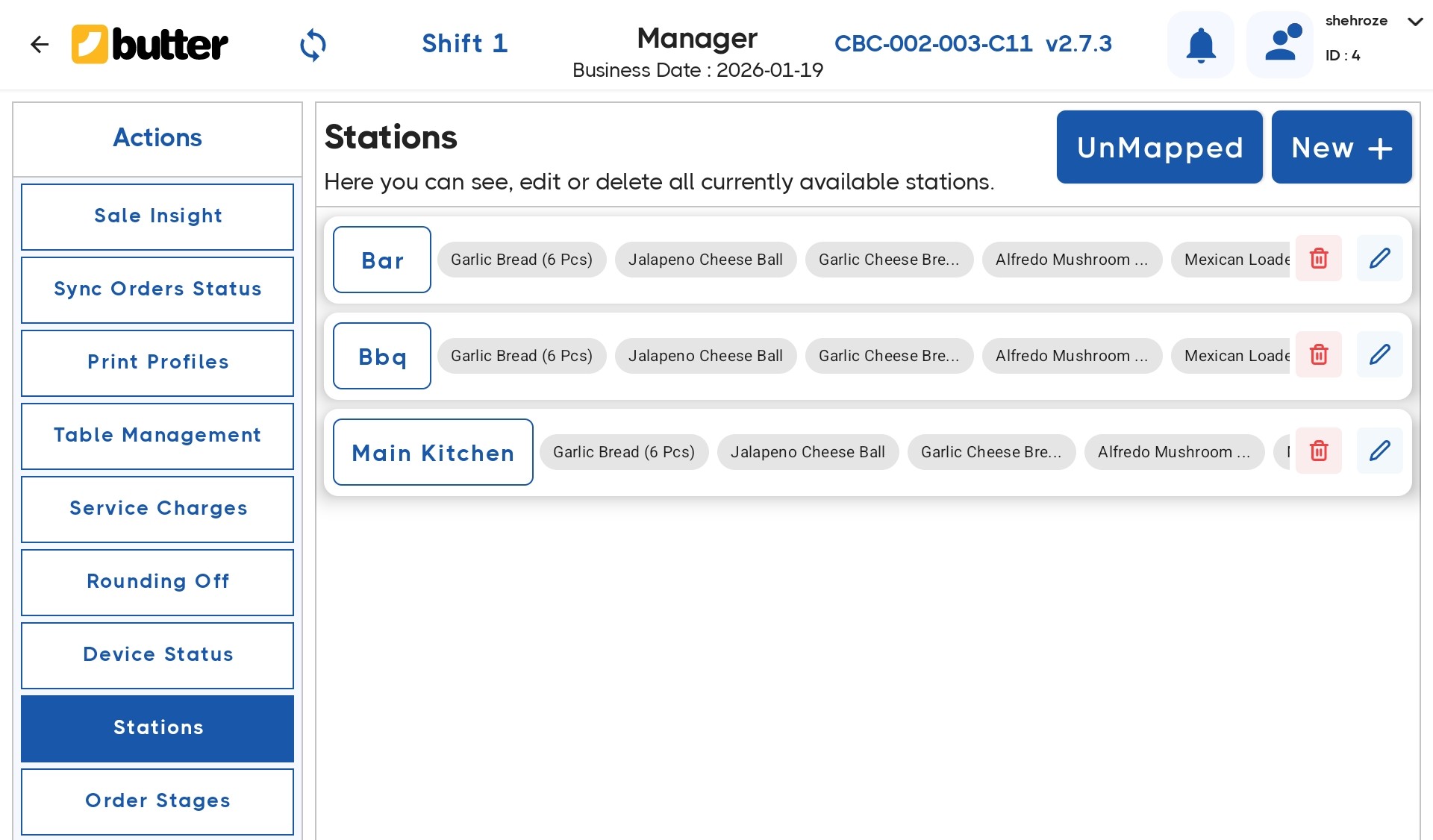
A station represents a specific work area, such as:
- Kitchen section
- Bar section
- Tandoor section
- Beverage Counter
- Dessert Section
Each station is linked to its own printer. When an order is placed, Butter POS separates the items and sends them to the appropriate station printers without any manual sorting.
How Station Wise Printing Works in Butter POS
The process in Butter POS follows a clear and structured flow:
- Stations are created to represent preparation areas
- Printers are assigned to each station
- Menu items are mapped to their respective stations
- When an order is saved or sent, Butter POS automatically splits the order
- Each station receives only the items assigned to it
This entire process happens in real time and requires no additional steps from the cashier or server.
Example of Station Wise Printing
Consider a single customer order with the following items:
- Veg Pizza – Kitchen Station
- Cold Coffee – Beverage Station
- Ice Cream – Dessert Station
Butter POS will automatically:
- Print the pizza on the kitchen printer
- Print the coffee order on the beverage printer
- Print the ice cream order on the dessert printer
Each team sees only what they need to prepare.
Step-by-Step Guide to Setting Up Station Wise Printing in Butter POS
Step 1: Create Stations
First, define stations in Butter POS based on your restaurant workflow. Each station should represent a real preparation area where items are made.
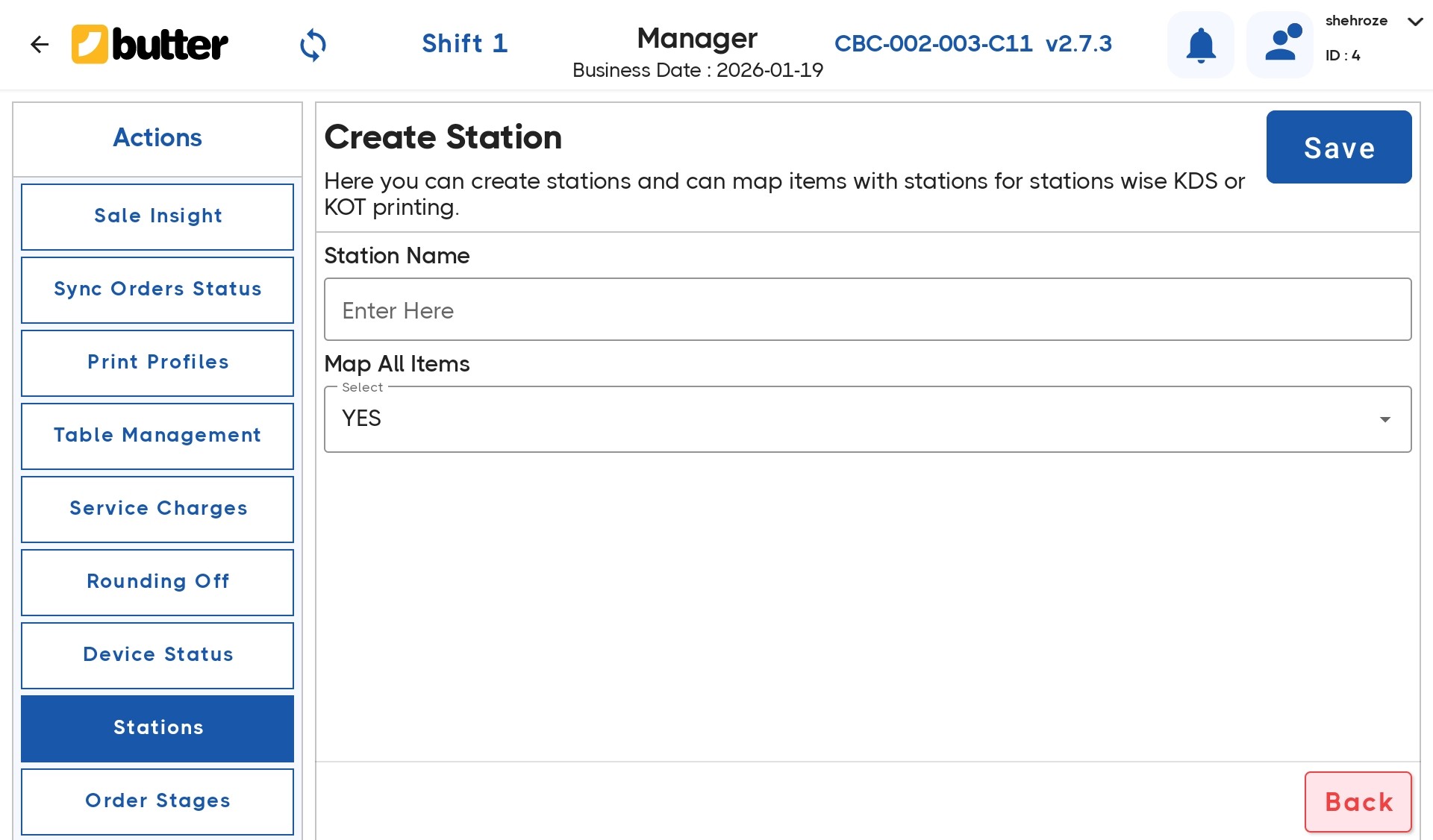
Examples:
- Main Kitchen
- Bar Counter
- Grill Section
Clear station structure helps prevent printing confusion later.
Step 2: Assign Printers to Stations
Each station must be linked to a dedicated printer.
Key points:
- One station can be linked to one printer
- The printer will receive orders only for that station
- Thermal printers are commonly used for KOT printing
Correct printer assignment is essential for accurate output.
Step 3: Map Menu Items to Stations
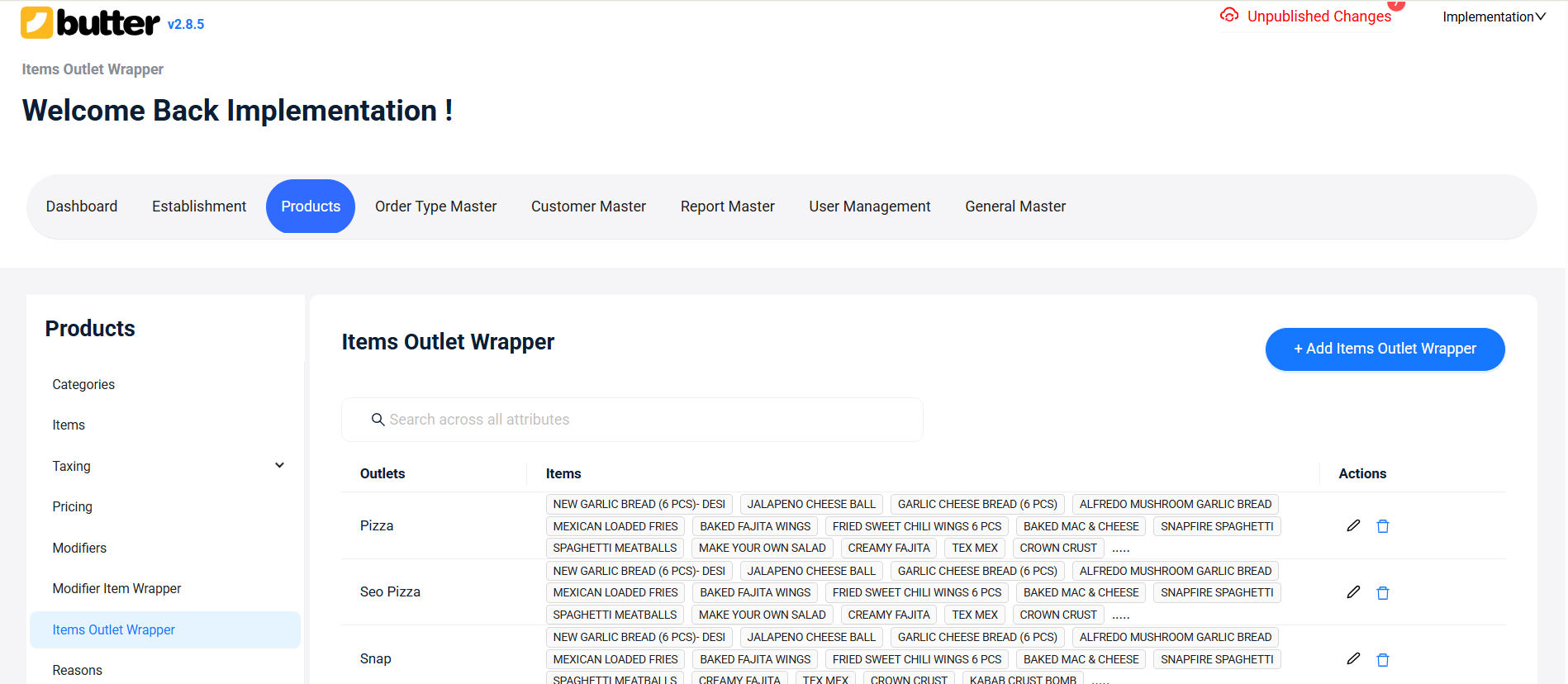
During menu setup, assign every item to the correct station.
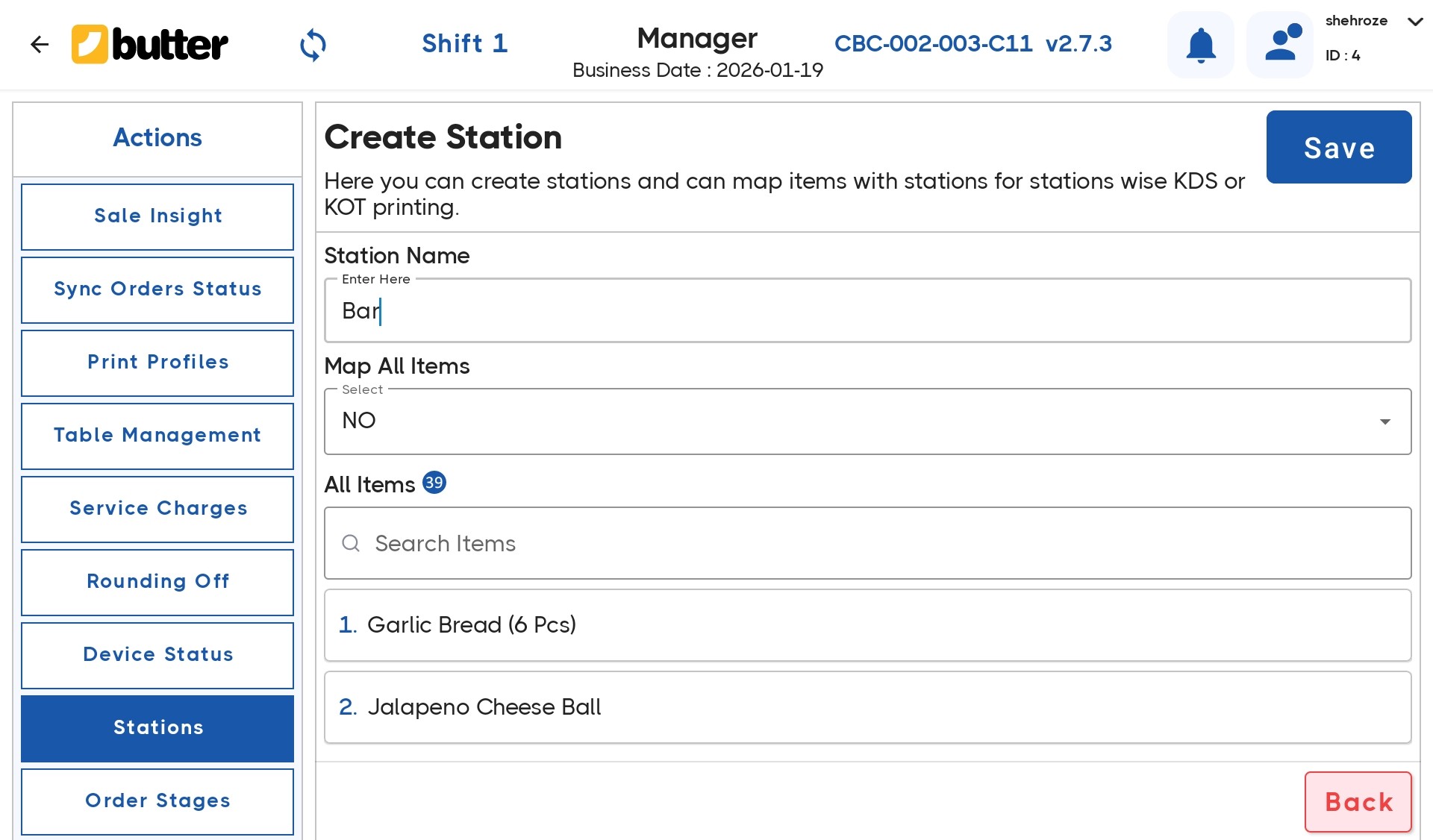
Examples:
- Burgers → Kitchen
- Mocktails → Bar
- Cakes → Dessert Station
If an item is not mapped to any station, it may not print correctly.
Step 4: Place and Send Orders
Once stations and items are configured:
- The cashier or server places an order
- The order is saved or sent for preparation
Butter POS automatically:
- Splits the order by station
- Sends each part to the relevant printer
No manual action is required after setup.
Station Wise Printing and KOT in Butter POS
Station-wise printing works closely with Kitchen Order Tickets (KOTs).
- Each station receives its own KOT
- KOTs show only the items relevant to that station
- Works for dine-in, takeaway, and delivery orders
This ensures faster preparation and better accountability.
Common Issues and Troubleshooting
Items Not Printing:
Check whether the item is assigned to a station.
Printing on the Wrong Printer:
Verify station-to-printer mapping.
All Items Printing on One Printer:
Confirm that multiple stations are properly configured and items are not assigned to the same station.
Correct configuration resolves most printing issues.
Who Should Use Station Wise Printing
Station-wise printing is ideal for:
- Restaurants with multiple preparation areas
- Cafes with separate beverage counters
- Cloud kitchens with parallel workflows
- Food courts and large dining outlets
Any business with more than one preparation team benefits from this feature.
Conclusion
Station-wise printing in Butter POS is designed to streamline restaurant operations by automatically routing orders to the correct preparation areas. When stations, printers, and items are properly configured, the system works seamlessly, reducing delays, improving accuracy, and enhancing overall service efficiency. For restaurants aiming to scale operations without increasing errors, station-wise printing is an essential feature of Butter POS.
Frequently Asked Questions (FAQs):
What is station wise printing in Butter POS?
Station-wise printing in Butter POS is a feature that automatically sends order items to different printers based on their assigned preparation stations, such as kitchen, bar, or dessert section. This ensures each department receives only the items they need to prepare.
How does station wise printing improve restaurant operations?
Station-wise printing improves efficiency by reducing confusion, speeding up preparation, and allowing multiple teams to work on the same order simultaneously. It eliminates the need for staff to manually sort items from a single printout.
What is a station in Butter POS?
In Butter POS, a station represents a specific preparation or service area within the outlet, such as the kitchen, bar, tandoor, or beverage counter. Stations are used to route items to the correct printers.
Can one order be printed on multiple printers?
Yes. A single order can be split across multiple printers in Butter POS. Each printer receives only the items assigned to its corresponding station.
Does station wise printing work with Kitchen Order Tickets (KOT)?
Yes. Station-wise printing works with KOTs, ensuring that each station receives a separate KOT containing only the items relevant to that station.
How are printers assigned to stations in Butter POS?
Each station is linked to a specific printer during setup. Once assigned, that printer will only receive orders for items mapped to that station.
What happens if an item is not assigned to a station?
If an item is not assigned to a station, it may not print correctly or may not appear on any station printer. Proper station mapping is required for accurate printing.
Can multiple items from different categories go to the same station?
Yes. Multiple menu items, even from different categories, can be assigned to the same station if they are prepared in the same area.
Is station wise printing automatic after setup?
Yes. Once stations, printers, and item mappings are configured, station-wise printing works automatically without requiring manual intervention from the cashier or server.
Does station wise printing support dine-in, takeaway, and delivery orders?
Yes. Station-wise printing in Butter POS works for dine-in, takeaway, and delivery orders, provided the stations and printers are correctly configured.
Can one station have its own dedicated printer?
Yes. Each station is typically linked to a dedicated printer so that only relevant items are printed at that location.
Why are all items printed on one printer?
This usually happens when all items are assigned to the same station or when multiple stations are incorrectly linked to a single printer. Reviewing station and item mapping resolves this issue.
Can station wise printing be used in cloud kitchens?
Yes. Station-wise printing is especially useful in cloud kitchens where multiple preparation teams work in parallel without a front-of-house setup.
Is station wise printing suitable for small restaurants?
Yes. Even small restaurants benefit from station-wise printing if they have more than one preparation area, such as a kitchen and a beverage counter.
Does Butter POS allow separate printers for bar and kitchen?
Yes. Butter POS supports separate printers for different stations, such as bar and kitchen, allowing clean separation of food and beverage orders.
What type of printers are used for station wise printing?
Thermal printers are commonly used for station-wise and KOT printing in Butter POS due to their speed and reliability in kitchen environments.
Can station wise printing reduce order preparation errors?
Yes. By sending only relevant items to each station, station-wise printing minimizes miscommunication and reduces preparation mistakes.
Is station wise printing configurable per outlet?
Yes. Station setup and printer mapping are configured per outlet, allowing different locations to follow workflows that match their operations.
What should be checked if a station printer is not printing?
You should verify that the station is properly created, the printer is correctly assigned to that station, and the items are mapped to the correct station.
Why is station wise printing important for high-volume restaurants?
High-volume restaurants rely on station-wise printing to handle large order volumes efficiently. It allows multiple teams to work in parallel, reduces delays, and keeps operations organized during peak hours.



 Region: United States


