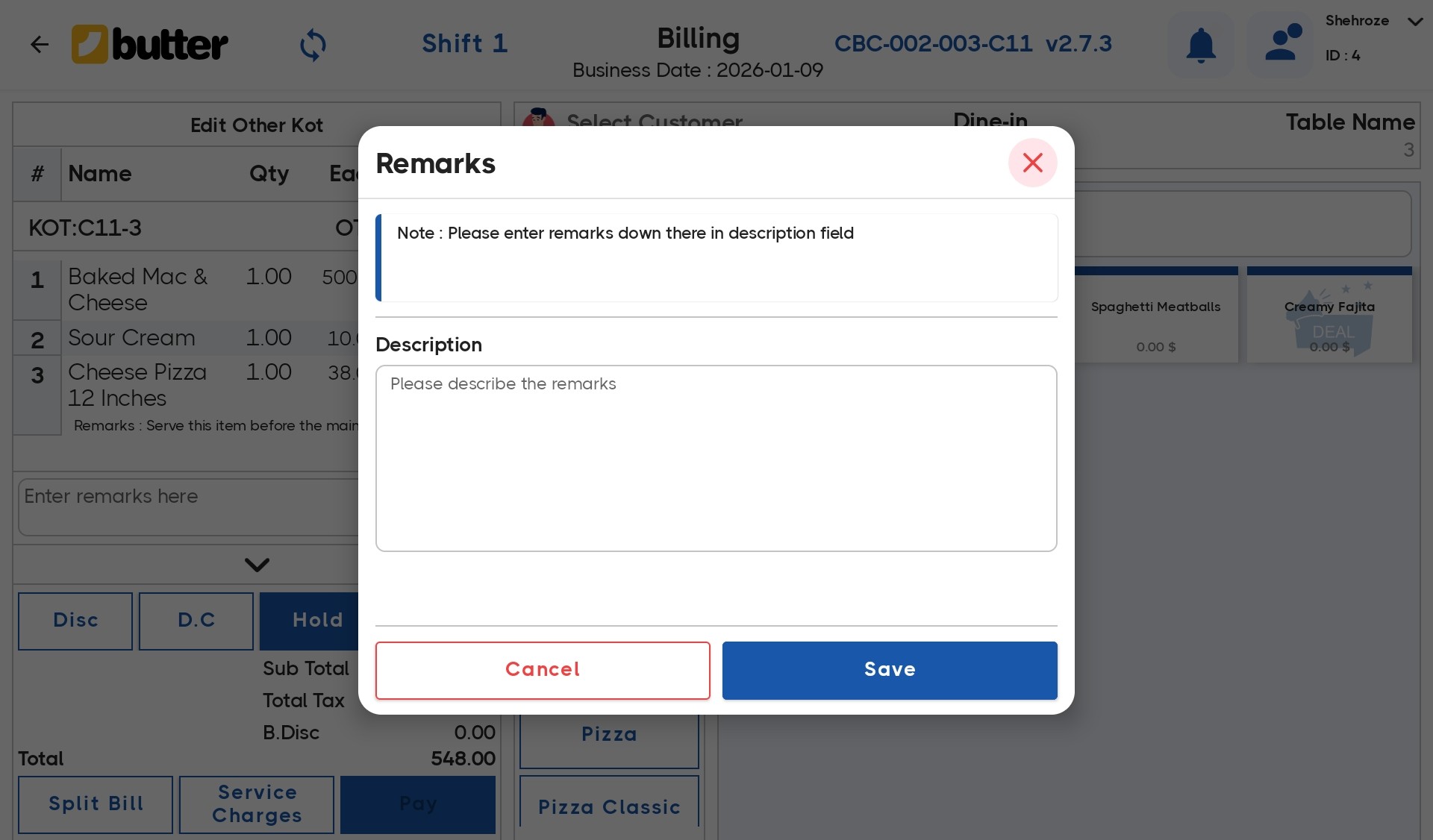
In Butter POS, item-level remarks allow staff to add specific preparation or customization instructions for a particular item in an order. This is especially useful when a customer wants changes in only one item, even if the same item appears multiple times in the cart.
Item-wise remarks ensure the kitchen receives clear, item-specific instructions, helping reduce errors and improve service accuracy.
This guide explains:
- How to apply remarks to individual items
- How item-wise remarks work in the cart
- How to edit or remove item remarks in running orders
- Where item remarks appear (Cart, KOT, Final Bill)
Step 1: Punch Items on the Billing Screen
Start by:
- Opening the billing screen
- Punching all items ordered by the customer
- Confirming that the items appear in the cart
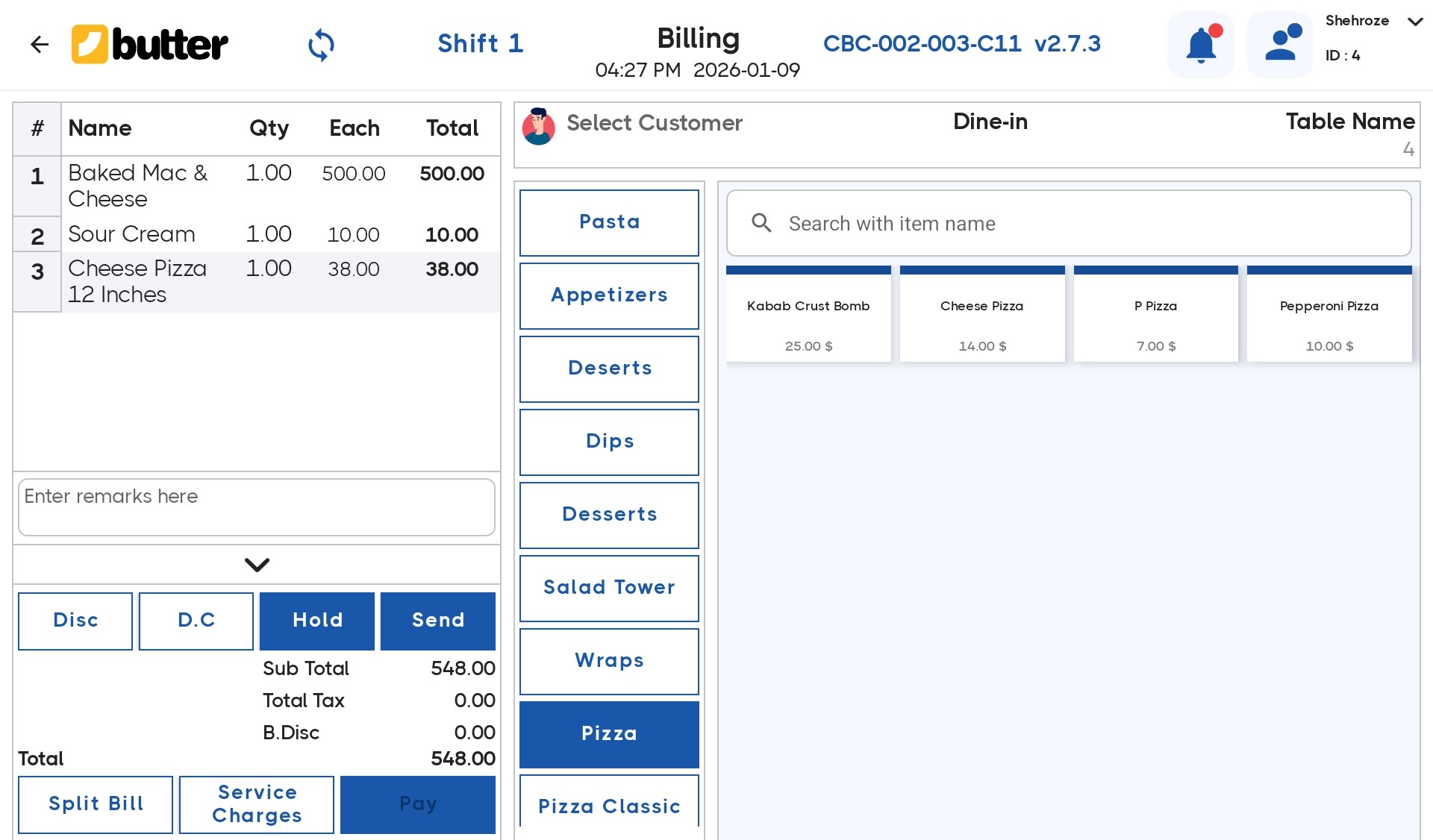
Once items are added, you can apply remarks to any individual item before sending the KOT or closing the bill.
Step 2: Apply Remarks to an Individual Item
Item-wise remarks are used when an instruction applies to only one specific item, not the entire order.
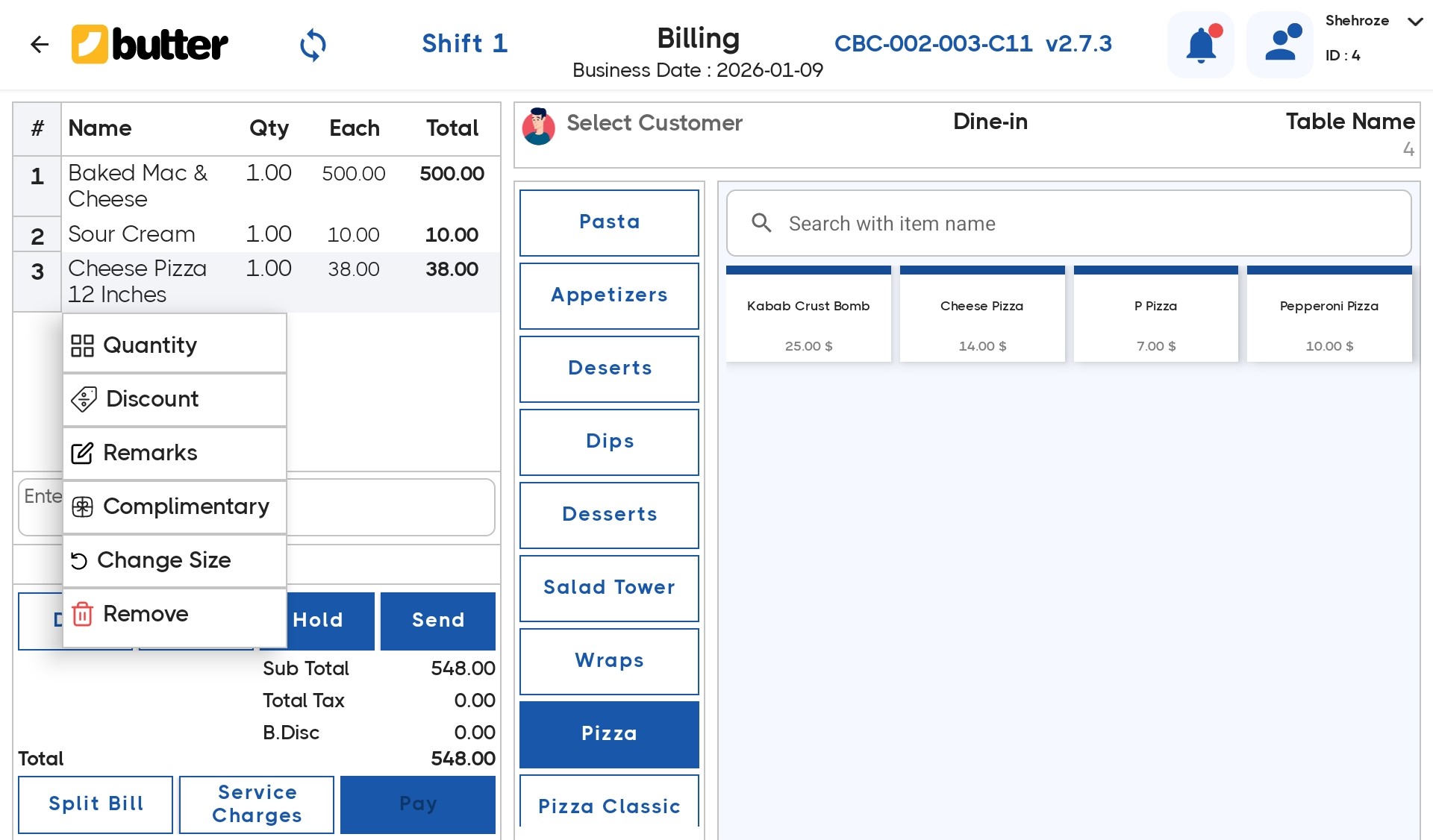
How to Apply Item Remarks:
-
In the cart, tap on the specific item
-
Item options will open
-
Select Remarks
-
Enter the instruction
-
Examples:
"No onion"
"Extra spicy"
"No sugar" -
Tap Save
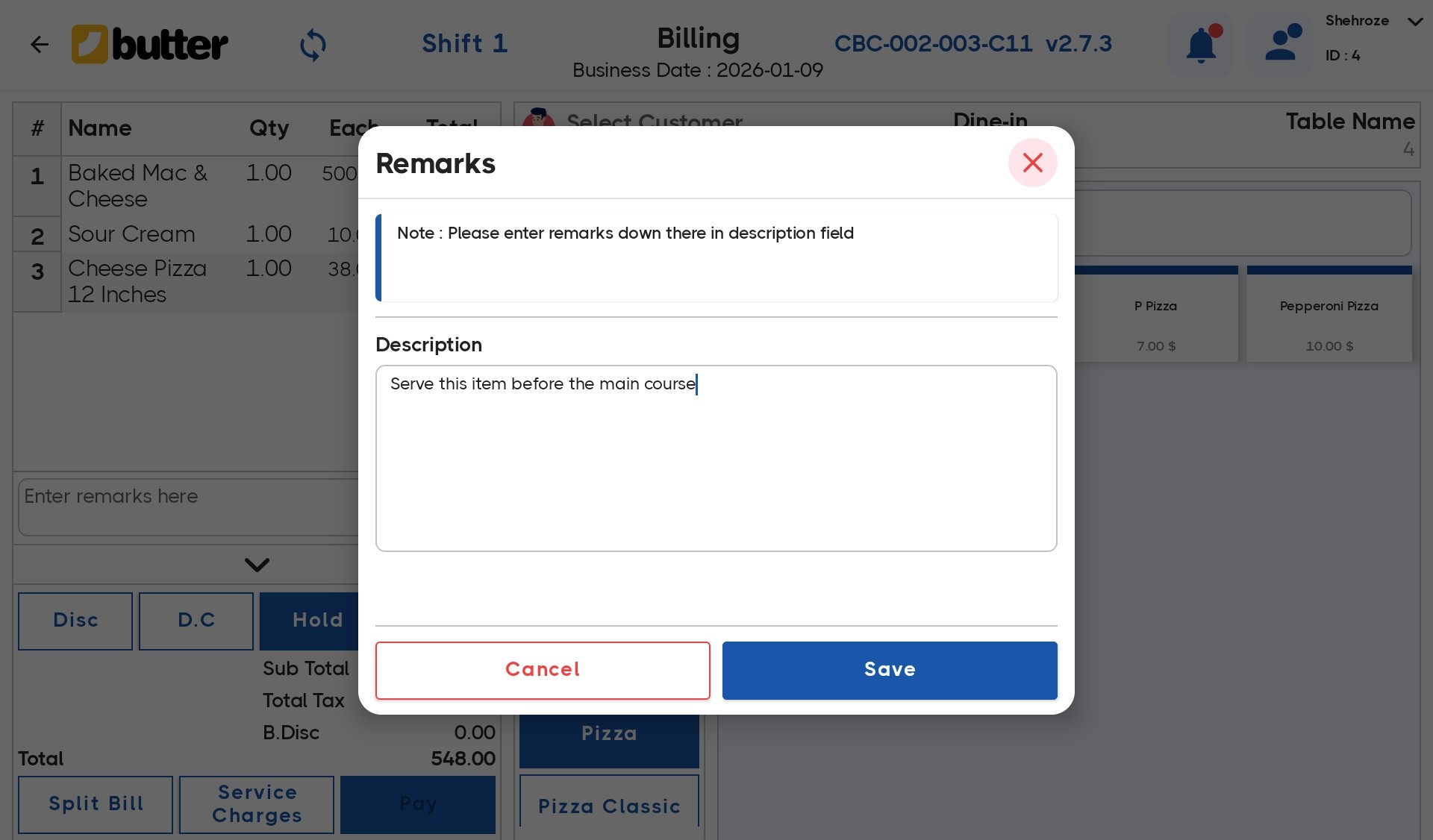
What Happens Next:
- The remark is linked only to that selected item
- Other items remain unchanged
- The remark appears:
-
Under the item in the cart
-
On the KOT
-
On the final bill
-
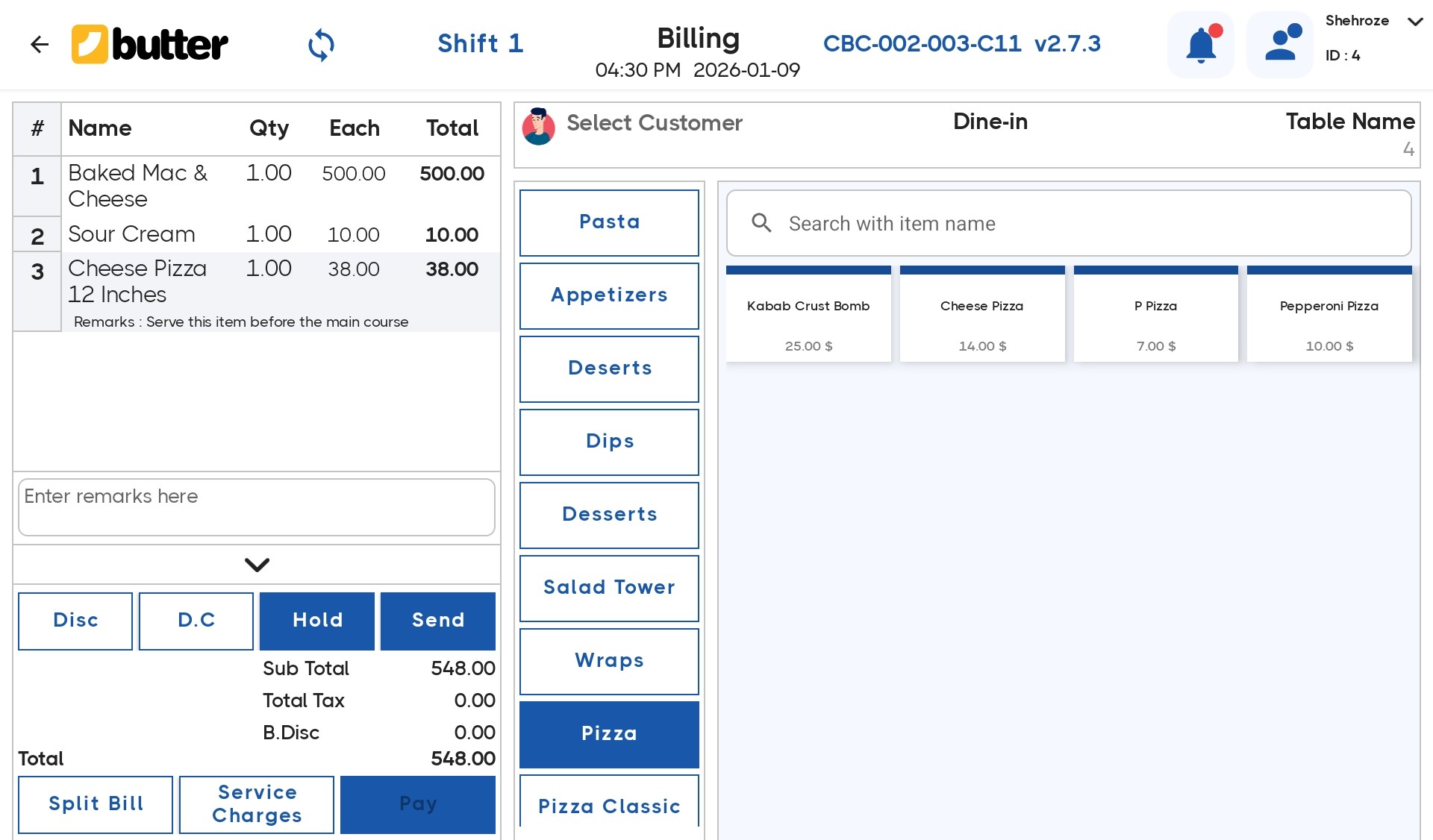
Step 3: Example for Better Understanding
Order:
- Chicken Burger × 2
- Cold Drink × 1
Customer Request:
-
One Chicken Burger: No mayo
Butter POS Flow:
- Tap one Chicken Burger in the cart
- Add remark: "No mayo"
- Save
Result:
-
Cart shows:
-
Chicken Burger (No mayo)
-
Chicken Burger (normal)
-
KOT shows:
-
Only one burger with "No mayo"
-
Final bill prints the remark under the correct item
This ensures the kitchen prepares exactly what the customer requested.
Step 4: Editing or Removing Item Remarks in Running Orders
Butter POS allows item-wise remarks to be managed even after the order is placed, as long as it is still a running order.
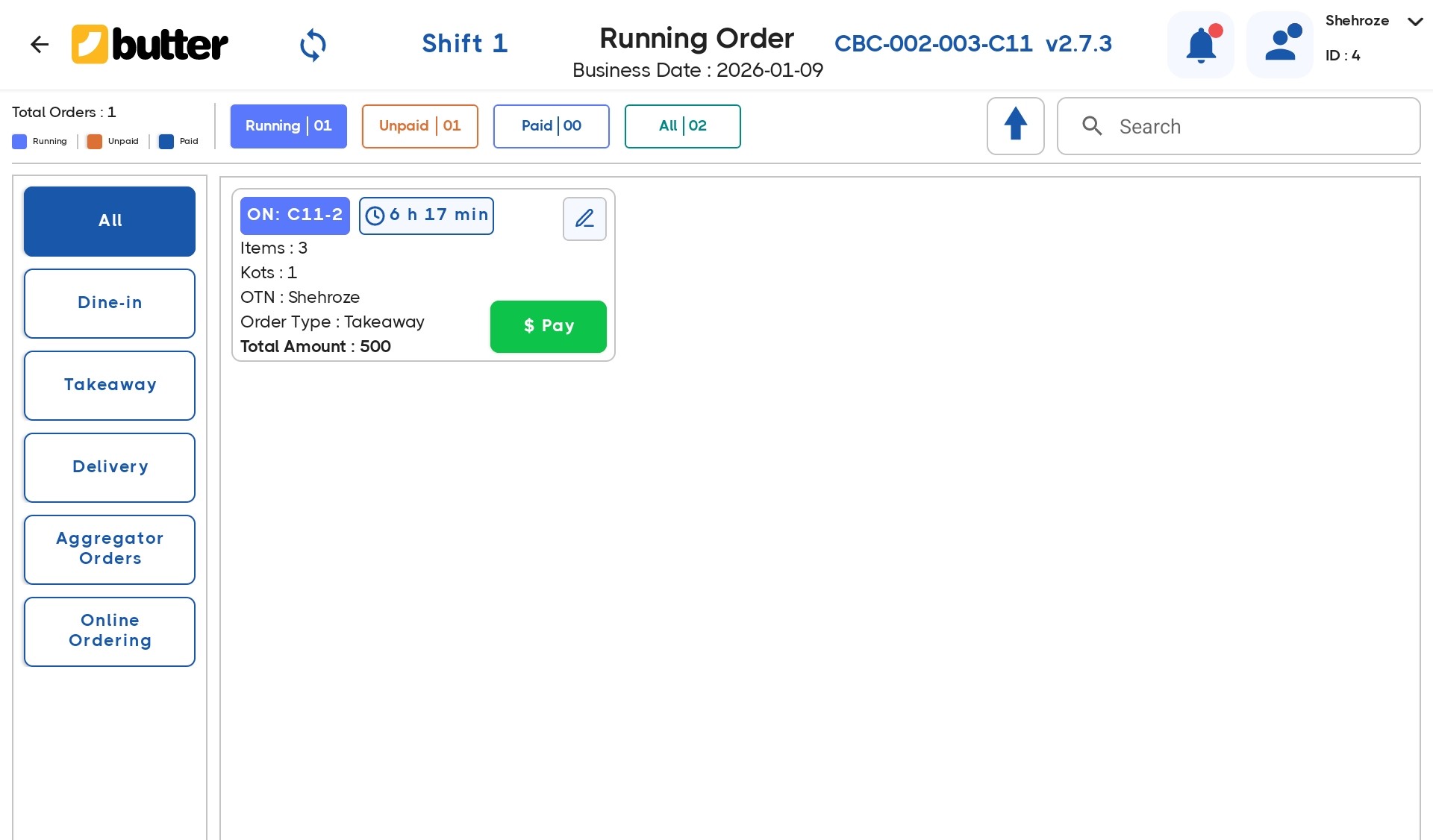
You Can:
- Remove an existing item remark
- Add a new remark to an item
- Edit an already applied remark
How:
- Open Running Orders
- Select the order
- Tap the specific item
- Update or remove the remark
- Save changes
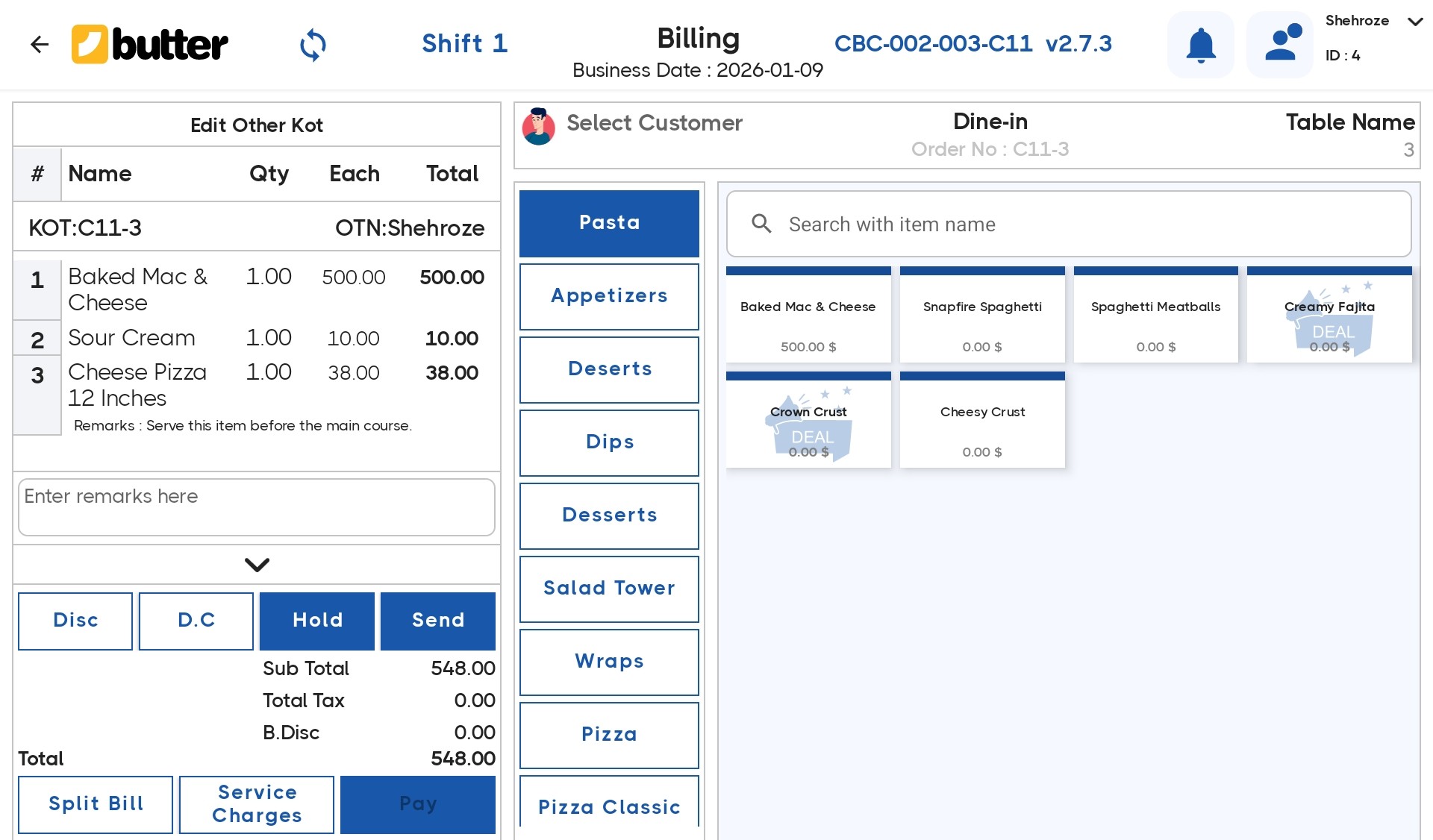
The update is applied immediately and reflected everywhere.
Where Do Item Remarks Appear?
Item-level remarks are visible throughout the order flow:
- Billing Cart – for staff verification
- KOT (Kitchen Order Ticket) – for preparation instructions
- Final Bill / Receipt – for transparency
This keeps everyone aligned and avoids confusion.
Conclusion
Item-level remarks in Butter POS give you precise control over how individual items are prepared. By attaching instructions directly to the specific item, you eliminate confusion and ensure that the kitchen follows the customer's request accurately.
Because these remarks are visible in the cart, printed on the KOT, and included on the final bill, everyone involved in the order stays informed. When used correctly, item-wise remarks help improve order accuracy, reduce mistakes, and deliver a better customer experience.
Frequently Asked Questions (FAQs)
What is a remark in Butter POS?
A remark in Butter POS is a note or comment that can be attached to an individual menu item. It helps staff add special instructions, customization requests, or specific preferences for a customer's order.
Why should I use remarks on individual items?
Using remarks ensures that customer orders are accurate and personalized. For example, it allows you to note dietary preferences, cooking instructions, or specific add-ons, reducing mistakes and improving customer satisfaction.
Can I add remarks for both dine-in and delivery orders?
Yes, Butter POS allows you to apply remarks for all order types, whether dine-in, takeaway, or delivery. This ensures that kitchen staff can prepare orders exactly as requested, no matter the service channel.
How do I add a remark to an item in Butter POS?
To add a remark, select the item on the order screen, tap "Add Remark," type your instructions, and save. The remark will appear with the item on the kitchen ticket for the staff to follow.
Are remarks visible to kitchen staff?
Yes, once a remark is added, it is automatically sent to the kitchen display or printed on the kitchen ticket, ensuring staff are aware of any special instructions.
Can I use pre-defined remarks for items?
Butter POS allows you to create a list of frequently used remarks, like "extra spicy" or "no onions," which can be quickly selected when adding an item, saving time during peak hours.
Is there a character limit for item remarks?
Typically, Butter POS has a practical character limit to ensure remarks fit on kitchen tickets and digital displays. While the exact limit may vary, keeping remarks concise helps maintain clarity.
Can multiple remarks be added to a single item?
Yes, you can add multiple remarks to the same item. For example, "extra cheese" and "well-done" can be applied together to customize an order fully.
Do remarks affect the price of an item?
Remarks themselves do not change the item price. However, if the remark includes a request for add-ons like extra toppings, Butter POS can apply additional charges automatically if configured.
Can remarks be edited after adding them to an order?
Yes, before the order is finalized or sent to the kitchen, you can edit or remove remarks if there is a change in customer preference.
How are remarks displayed on the kitchen screen?
Remarks appear directly under the item on the kitchen display screen, clearly highlighting special instructions to the chef or kitchen staff, reducing confusion and errors.
Can I print remarks on customer receipts?
Yes, Butter POS can be configured to print item remarks on receipts, which helps customers verify that their special requests have been acknowledged.
Do remarks work with modifiers in Butter POS?
Absolutely. Remarks complement modifiers. While modifiers are standardized changes like "size" or "flavor," remarks allow for free-text instructions that are unique to the customer.
Can I track which remarks are most used?
Butter POS reporting tools may allow you to analyze remark trends, helping you understand customer preferences, like common special instructions, to improve menu planning and service.
Is there a shortcut to apply remarks quickly?
Yes, frequently used remarks can be saved as shortcuts or buttons, allowing staff to apply them with a single tap during busy service times.
Do remarks work with split orders?
Yes, remarks are attached to individual items regardless of how an order is split by table, customer, or payment method, ensuring instructions remain item-specific.
Can remarks be applied from the mobile POS app?
Yes, Butter POS mobile apps allow staff to add or edit remarks on-the-go, ensuring seamless order customization even when staff are away from the main terminal.
Will remarks affect inventory tracking?
Remarks themselves do not affect inventory, but if they involve additional items (like "add extra bacon"), Butter POS can adjust inventory automatically if the add-on is linked to stock.
Can remarks be applied automatically for certain items?
Butter POS allows for automation where pre-defined remarks can be triggered for specific items. For example, "serve hot" can automatically appear for soups or hot beverages.
What are common mistakes to avoid when adding remarks?
Common mistakes to avoid when adding remarks include writing unclear or vague instructions like "do it differently," forgetting to save the remark before sending the order, and overloading the remark with too much detail, which can make it difficult for kitchen staff to read and follow accurately.



 Region: United States


