Restaurants deal with many real-world situations where applying a discount to the entire bill does not make sense. Sometimes only one item needs an adjustment, such as a complimentary item, a customer complaint resolution, or a manager-approved price correction.
Butter POS is built for this flexibility. Along with full-bill discounts, it allows discounts on individual items, while keeping billing, receipts, and reports fully accurate.
This tutorial explains:
- What item-level discounts are in Butter POS
- Types of discounts available
- How to apply discounts on individual items
- How discounts work in running orders
- How discounts appear on the billing screen and final bill
- How discounts reflect in reports
Let's get started.
What Are Item-Level Discounts in Butter POS?
In Butter POS, an item-level discount allows staff to reduce the price of a specific menu item instead of applying a discount to the entire order.
Each discounted item:
- Keeps its own discount record
- Updates totals instantly
- Remains linked to the order for billing, settlement, and reporting
This ensures flexibility for staff and clarity for management.
Types of Discounts Available in Butter POS
Butter POS supports two discount types, available for both full bills and individual items.
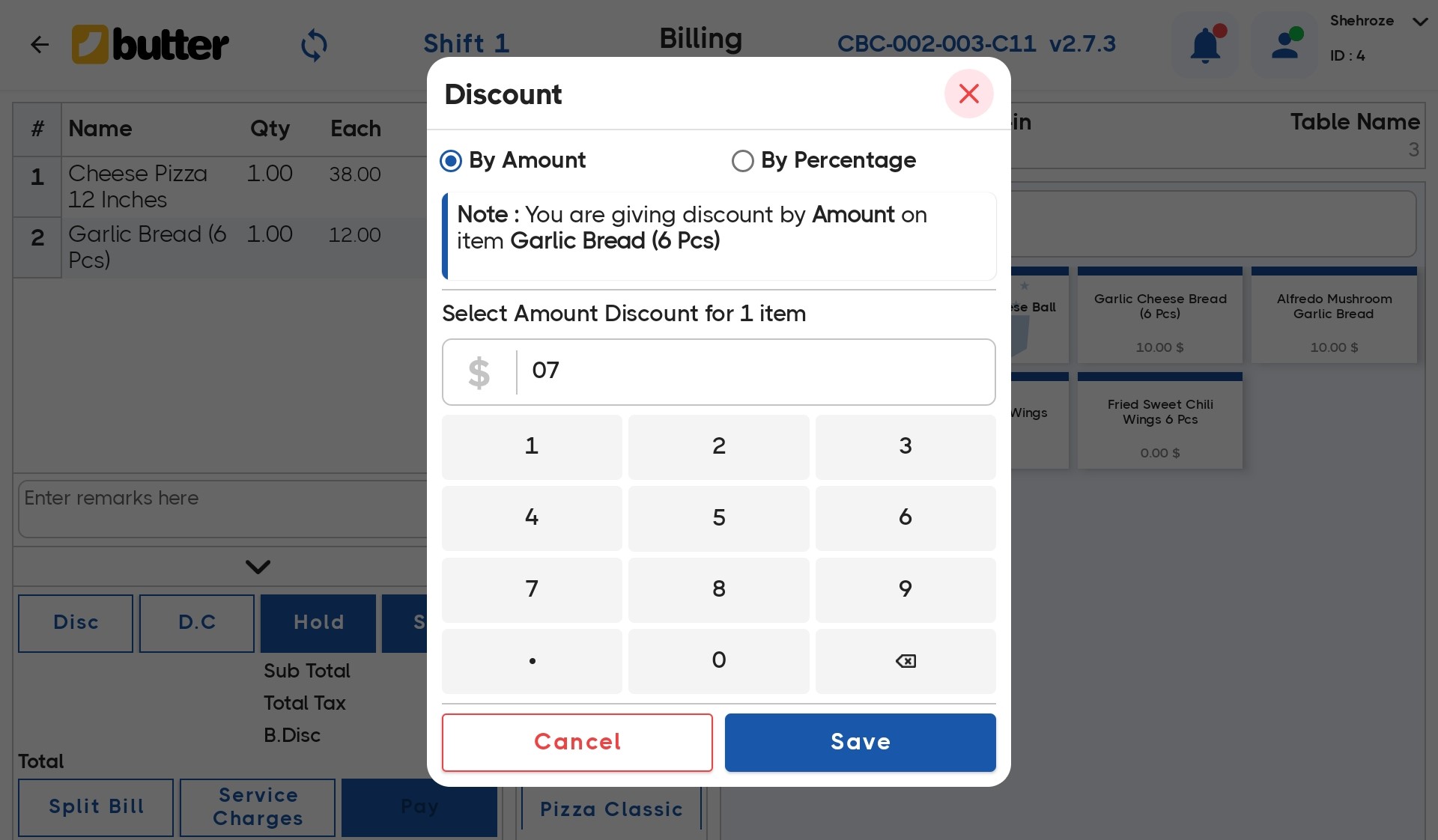
1. Discount by Amount
A fixed value is deducted from the item price.
Example:
- Item price: 1,000
- Discount by amount: 200
- Final price: 800
Best used for:
- Price corrections
- Complimentary partial items
- Manual adjustments
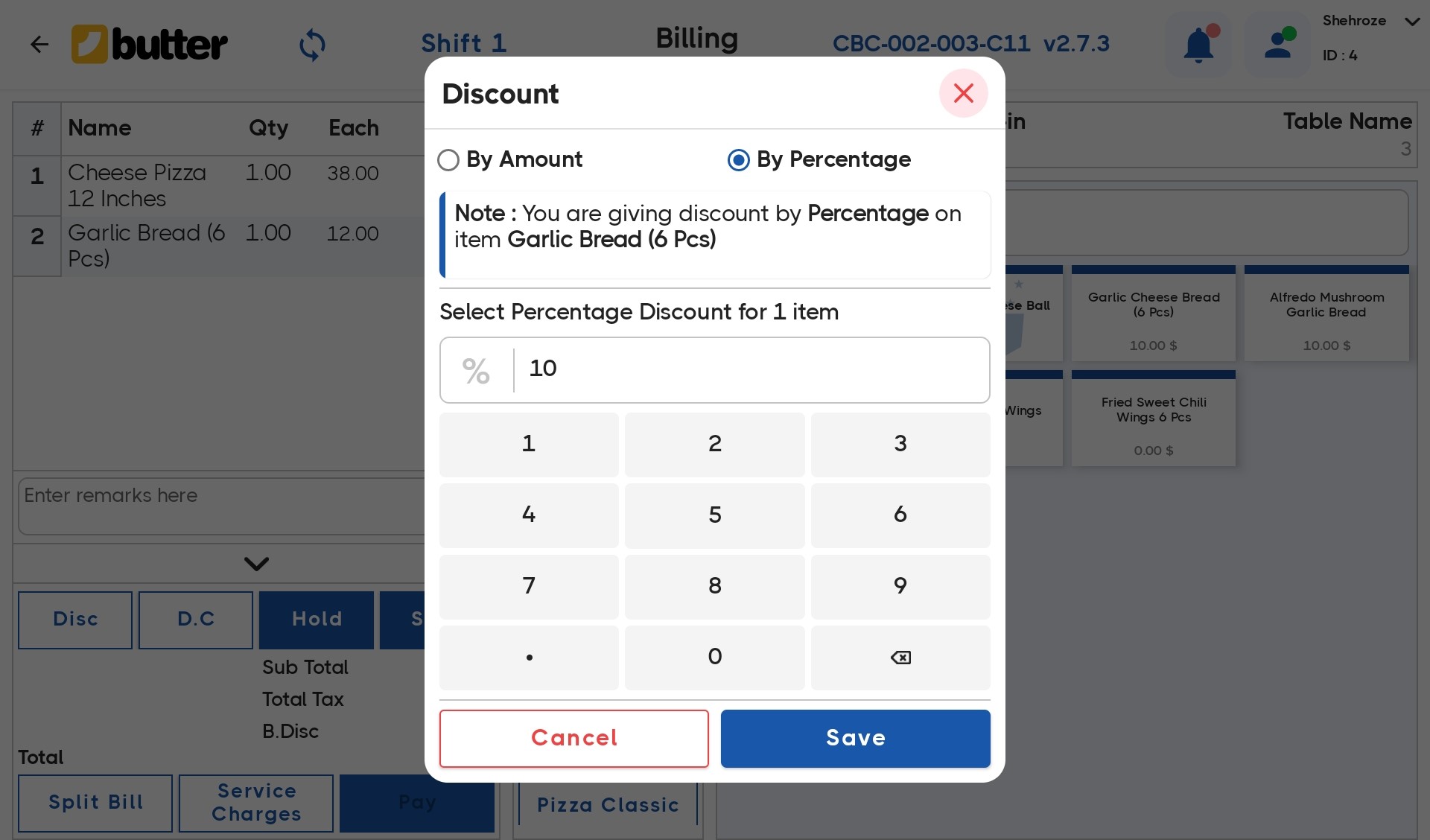
2. Discount by Percentage
A percentage-based reduction is applied to the item price.
Example:
- Item price: 2,000
- Discount by percentage: 10%
- Discount value: 200
- Final price: 1,800
Best used for:
- Promotions
- Loyalty offers
- Manager-approved special discounts
Applying Discount on Individual Items During Billing
1) Start a New Order
- Get into the homescreen of Butter POS
- Select the order type (Dine-In, Takeaway, or Delivery)
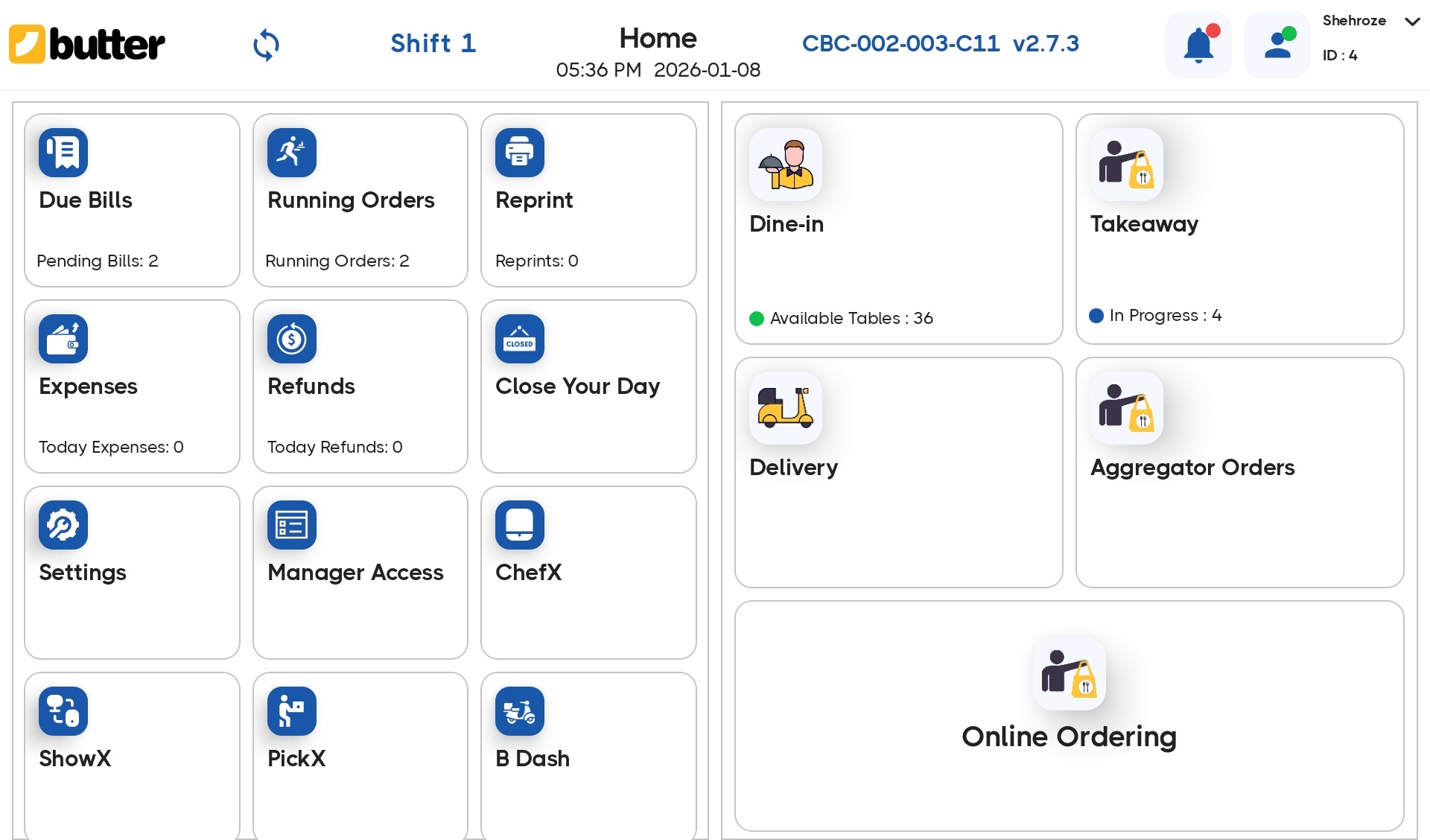
Order type selection is compulsory before billing begins.
2) Add Items to the Cart
- Add required menu items from the billing screen
- Items appear in the cart with original prices
At this stage, no discount is applied.
3) Select the Item You Want to Discount
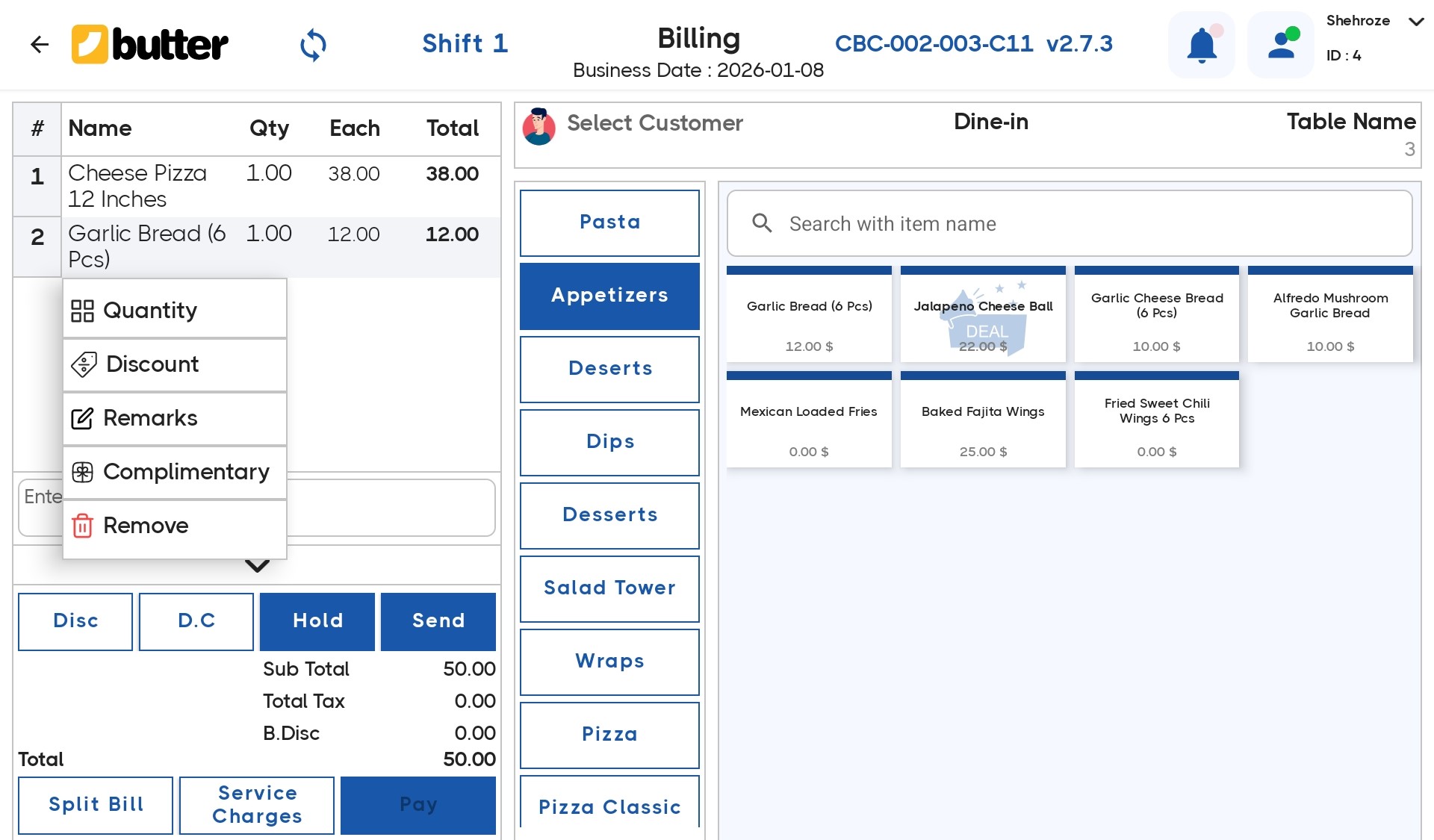
- In the cart section, tap on the specific item
- Select the option "Discount"
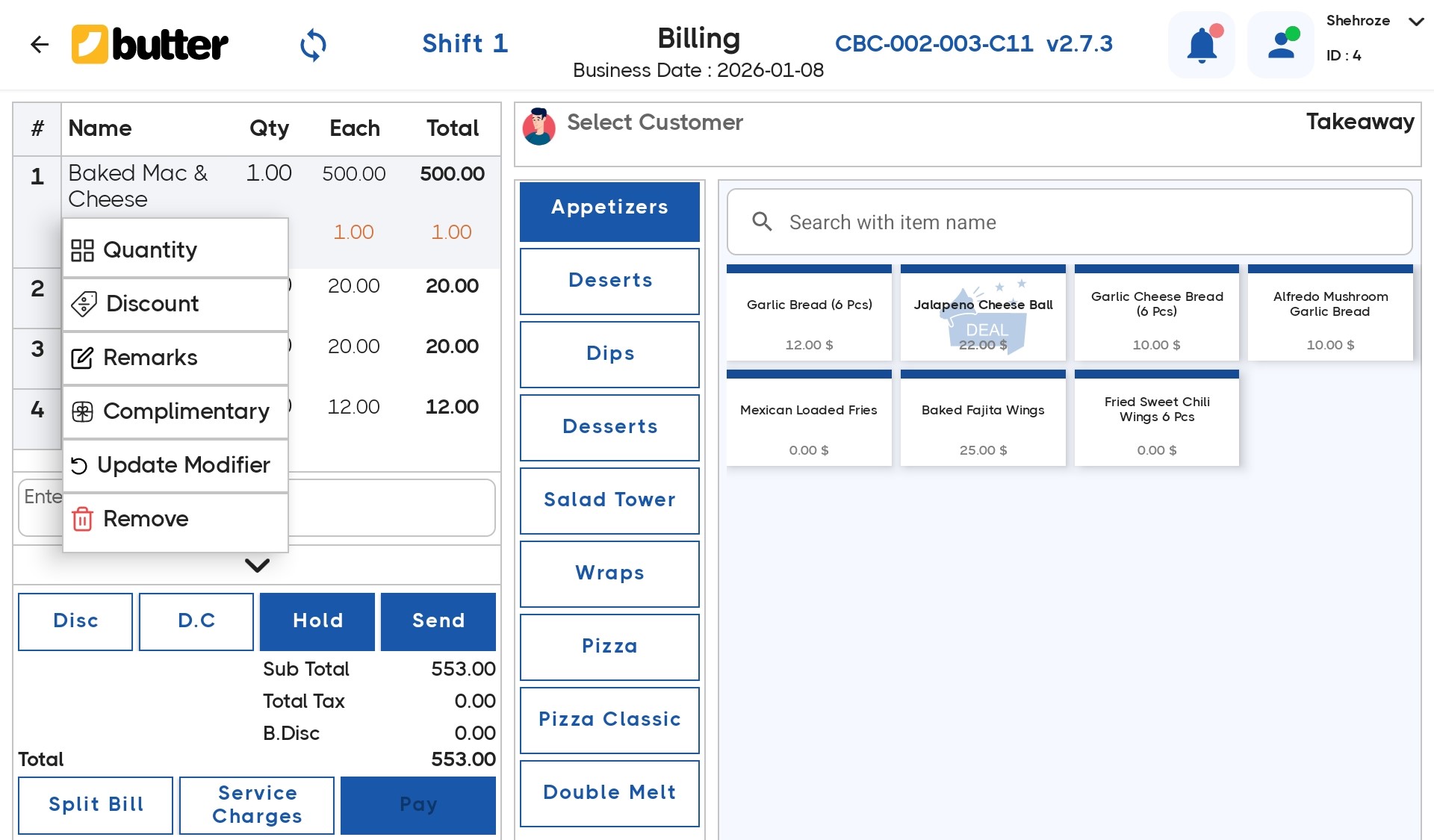
4) Apply Discount on the Item
Inside the item discount screen, you can choose:
- Discount by Amount
- Discount by Percentage
- Enter the value and confirm.
Example (Amount):
- Item price: $12
- Discount: $7
- Final price: $5
Example (Percentage):
- Item price: $12
- Discount: 10%
- Final price: $10.8
The discounted price reflects instantly in the cart.
Applying Item Discounts in Running Orders
Butter POS allows discounts even after an order is already running.
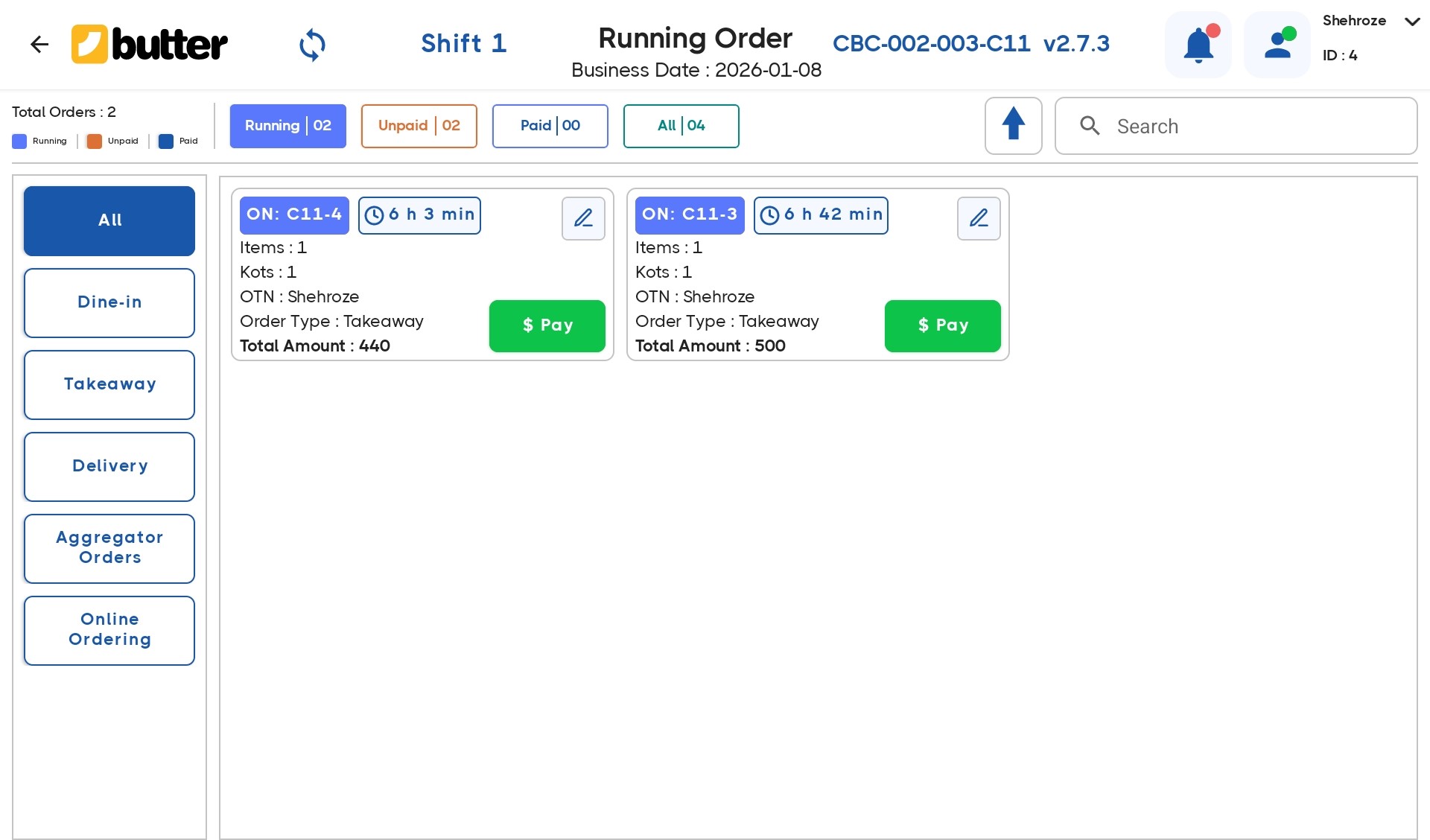
How It Works:
- Go to Running Orders
- Select the active order
- Tap Edit Order
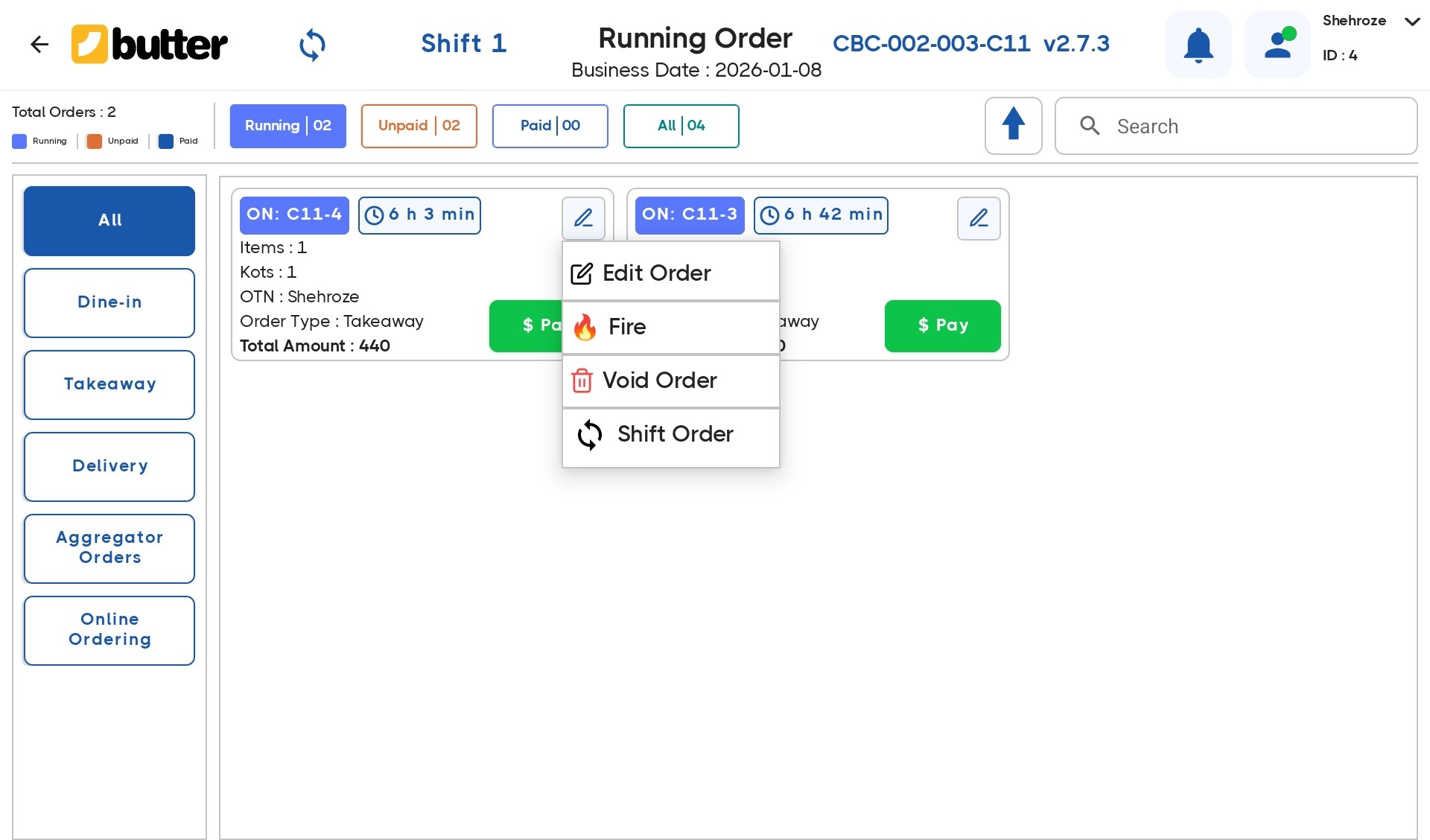
The system takes you back to the billing screen.
From here:
- Select the item in the cart
- Open the Discount option
- Apply or update the discount
This is especially useful when:
- Customers request adjustments mid-service
- Managers approve late discounts
- Errors need correction without canceling the order
Full Bill Discount vs Item-Level Discount
Butter POS supports both, but they serve different purposes:
- Full Bill Discount: Applies to the total order amount
- Item-Level Discount: Applies only to selected items
Item-level discounts are ideal when:
- Only one item needs adjustment
- Specific customer issues need resolution
Discount Visibility on Billing Screen
Whether applied on a full bill, or on a specific item, Butter POS clearly displays discounts on the billing screen:
- Discounted item prices update instantly
- Discount section reflects applied values
- Subtotal and grand total recalculate automatically
This keeps billing transparent for staff and customers.
Discount Visibility on Final Bill (Receipt)
All discounts applied in Butter POS:
- Appear on the final bill / receipt
- Show reduced prices clearly
- Display the correct payable amount
Customers can easily see:
- Original price
- Discount applied
- Final amount
This reduces disputes and builds trust.
How Discounts Reflect in Reports
Discounts in Butter POS are not hidden adjustments.
Once applied:
- Discounts are stored permanently with the order
- Reflected accurately in sales reports
- Included in discount and net sales summaries
Management can:
- Track total discounts given
- Compare discounts by shift or day
- Maintain accurate revenue reporting
No manual reconciliation is required.
Summary
Butter POS gives restaurants full control over discounts by supporting both full-bill and item-level discounts.
With flexible discount types, clear billing visibility, and accurate reporting, restaurants can handle real-world scenarios without compromising operational or financial clarity.
Frequently Asked Questions (FAQs)
What is an item-level discount in Butter POS?
An item-level discount in Butter POS allows you to apply a specific discount to a single menu item rather than the entire order. This helps in running promotions, correcting pricing errors, or offering loyalty perks without affecting other items on the bill.
How do I apply a discount to an item in Butter POS?
To apply a discount, select the item on the order screen, tap the "Discount" or "Apply Discount" button, enter the discount percentage or amount, and confirm. The system will automatically adjust the price of that specific item.
Can I apply both percentage and fixed amount discounts?
Yes. Butter POS supports both percentage-based discounts (e.g., 10% off) and fixed-amount discounts (e.g., $2 off) for individual items. You can choose the method while applying the discount on the item.
Is it possible to apply multiple discounts to the same item?
Butter POS generally allows only one discount per item to avoid confusion in billing. If multiple discounts are needed, you can combine them before applying or use item modifiers to adjust prices.
Can I apply discounts after the order is sent to the kitchen?
Yes, you can apply item-level discounts even after sending the order, but it may depend on your restaurant's workflow. Once applied, the updated total will reflect immediately in the bill.
Does applying a discount affect taxes?
Yes. Butter POS automatically recalculates taxes based on the discounted price of the item. This ensures compliance with tax rules and avoids overcharging customers.
Can I restrict which staff can apply item discounts?
Absolutely. Butter POS allows you to set user permissions, restricting discount privileges to managers or senior staff only. This prevents unauthorized discounting and revenue loss.
Is there a way to pre-set discounts for menu items?
Yes, you can set promotional discounts or special pricing for specific items in the Butter POS backend. Once configured, staff can apply these discounts quickly without manual entry.
Can discounts be applied to items in delivery or takeaway orders?
Yes. Item-level discounts work for dine-in, delivery, and takeaway orders. The discounted price will appear correctly on receipts and invoices for all order types.
How do I remove a discount from an item?
Select the discounted item and tap "Remove Discount". The item will return to its original price, and the total order amount will update automatically.
Are item discounts reflected in sales reports?
Yes. Butter POS tracks all discounts applied, including item-level ones. You can view this data in sales reports to analyze promotions and staff performance.
Can I apply discounts to items that are part of a combo or bundle?
Yes, but it depends on your combo pricing rules. In Butter POS, you can choose to apply the discount to the entire combo or individual items within it, depending on your setup.
Will the discounted item price appear on the customer receipt?
Yes. The receipt clearly shows the original price, discount applied, and final price for transparency and to reduce customer queries.
Can discounts be applied to already discounted items?
Butter POS typically prevents stacking discounts on the same item to avoid mispricing. You can either override the previous discount or adjust the item price manually if needed.
Does applying a discount affect inventory tracking?
No. Item-level discounts do not affect inventory counts. The system still deducts the actual quantity sold from your inventory.
Can I automate discounts for certain items during happy hours?
Yes. Butter POS allows you to schedule item discounts for specific times or days, making it easy to run happy hour promotions without manual input.
Are item-level discounts included in loyalty points calculations?
Yes, Butter POS can be configured to calculate loyalty points based on discounted or full item prices, depending on your loyalty program settings.
Can I apply discounts while splitting bills by item?
Absolutely. Each item's discount is applied before splitting the bill, ensuring that each customer pays the correct amount for their share.
How do I handle mistakes when applying item discounts?
If a discount is applied incorrectly, simply remove or adjust the discount on the item. Butter POS logs all changes, helping you track corrections for accountability.
Is it possible to report all discounted items separately?
Yes. Butter POS sales and analytics reports can filter or highlight all items sold with discounts, allowing you to analyze the performance of promotions or monitor staff activity.



 Region: United States


